
Trucky
Link your Trucky company so deliveries, live drivers and driving stats flow into your Hub — plus tracker settings.
What linking gives you
Trucky is a delivery tracker your drivers run alongside ETS2 or ATS. Link your Trucky company to your Hub and:
- Completed deliveries flow in automatically — they show on your Hub, count towards points, and can be announced in Discord.
- Drivers show as driving now while they are on the road, and each delivery gets a route replay and a driving score.
- Your Trucky company, members and roles can be imported in one click, and membership stays in sync afterwards.
Get your Trucky API credentials
Everything you need lives on one tab in Trucky. Open your company in Trucky and go to Company Settings → API. You will use three values from that tab:
- Company ID
- Company API Token
- Webhook Secret Key
📷 Screenshot coming soon — Trucky's Company Settings → API tab showing the Company ID, API Token and Webhook Secret Key.
Connect your company
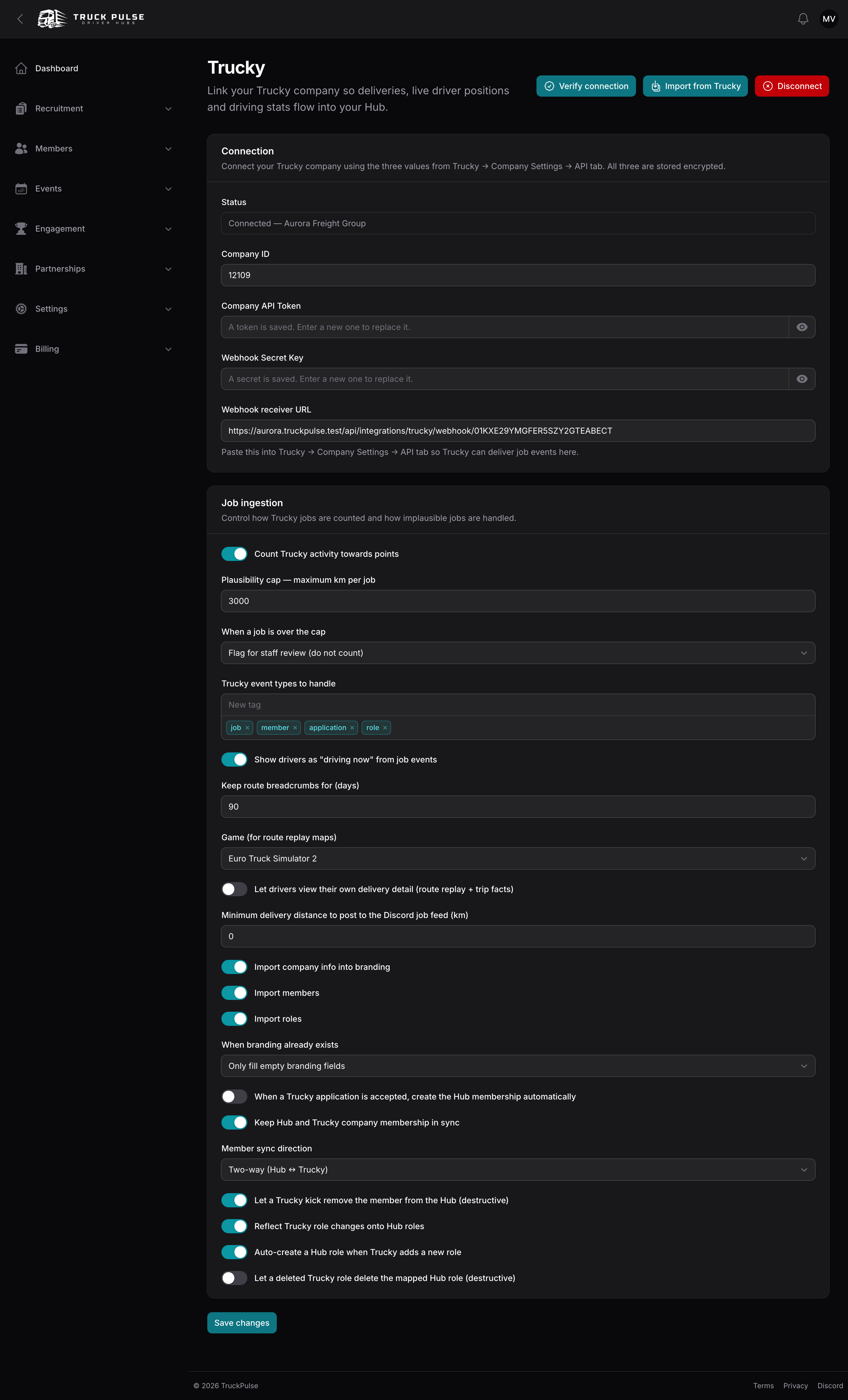
- In your Hub panel, go to Settings → Trucky.
- In the Connection section, fill in Company ID, Company API Token and Webhook Secret Key with the values from Trucky. All three are stored encrypted.
- Choose Verify connection. On success you will see "Connected to Trucky" with your company's name; if not, the message explains what to fix.
- Copy the Webhook receiver URL shown on the page and paste it back into Trucky's Company Settings → API tab, so Trucky knows where to deliver job events.
📷 Screenshot coming soon — the webhook URL field on Trucky's Company Settings → API tab with the receiver URL pasted in.
The Webhook Secret Key matters: Trucky signs every delivery it sends with it, and Truck Pulse rejects anything that does not carry a valid signature. If you ever rotate the secret in Trucky, update it here too.
Check the connection status
At the top of Settings → Trucky there is a status card. It is the same view our support team sees, so you never have to ask us what is wrong — it is on your own page.
The badge tells you where the connection stands:
- Not connected — you have not entered credentials yet, or you disconnected.
- Connected — Trucky accepted your credentials. Deliveries arrive as your drivers finish jobs.
- Connection error — Trucky rejected the last request. The card shows exactly what Trucky said and what to do about it; usually the API Token has been regenerated and needs re-copying.
Under the badge is a line of plain-English guidance for whichever state you are in, and under that, when something has gone wrong, the actual error message.
You may also see:
- "N recent checks have failed, and we are still retrying." — an amber line next to a green badge. This is a heads-up, not a problem to fix: your credentials are fine, Trucky is just not answering right now. We keep retrying, deliveries and member sync carry on working the moment it recovers, and the line disappears on its own. The badge stays green however long this goes on — an outage at Trucky's end is not a reason to send you to re-enter a token that works. If you have switched alerts on (below), you will get one email once the run of failures gets long enough.
- A delivery was rejected — Trucky reached your Hub, but the signature did not match the Webhook Secret Key saved here. Re-copy it from Company Settings → API and save it again. This is the usual reason for "everything says connected but no deliveries appear".
- No deliveries have arrived yet — the credentials work, but the receiver URL probably has not been pasted into Trucky yet. See step 4 above.
If you would rather be told by email than notice it here, see Notifications.
Import your company
With the connection verified, pull your existing Trucky company into the Hub in one click:
- On Settings → Trucky, choose Import from Trucky.
- A preview shows exactly what will happen — how many members and roles will be created and which branding fields will be filled — before anything is written.
- Choose Run import. Roles and branding are applied straight away; members import in the background, with a progress panel on the page until they are done.
📷 Screenshot coming soon — the import preview showing what will be created before you click Run import.
Good to know:
- Re-running is safe — nothing is duplicated.
- By default the import only fills empty branding fields and never overwrites something you already set. Switch When branding already exists to Overwrite existing branding if you want Trucky's values to win.
- Members who do not have a Truck Pulse account yet are held aside and join your roster automatically the first time they sign in with Steam — Trucky and Truck Pulse both identify drivers by their Steam account.
- You can switch off any part with the Import company info into branding, Import members and Import roles toggles before running.
What stays in sync
After the import, the connection keeps working in the background. Each of these has its own switches in the settings sections on Settings → Trucky:
- Deliveries — every job your drivers complete arrives via the webhook and is listed under Trucky jobs in your Hub panel. Jobs count towards points unless you turn Count Trucky activity towards points off, and implausibly long jobs are flagged for staff review by default (the plausibility cap and outlier policy are yours to tune). A job appears once the driver finishes or cancels it, never while it is still in progress. If a webhook is ever missed, an hourly catch-up re-reads your company's recent jobs from Trucky and fills the gap.
- Members — two-way by default: drivers added or removed in Trucky are reflected on your roster, and roster changes are pushed back to Trucky. The Hub always wins on a conflict. You can restrict the direction (Inbound only / Outbound only), and the destructive case — a Trucky kick removing the member from your Hub — has its own toggle.
- Applications — applications submitted in Trucky appear in your Hub's applications pipeline alongside your own. By default a Trucky acceptance only updates the application's status and your staff finalise membership in the Hub; turn on the auto-membership setting if you want a Trucky acceptance to create the membership itself.
- Roles — one-way, Trucky → Hub: role changes made in Trucky are reflected onto your Hub roles (Trucky offers no way for us to write roles back). New Trucky roles auto-create a matching Hub role by default, and a deleted Trucky role only deletes the mapped Hub role if you opt in — otherwise the Hub role stays and the difference is logged.
Tracker settings
Which tracker your drivers should run is a Hub-wide policy, set on Settings → Delivery tracker.
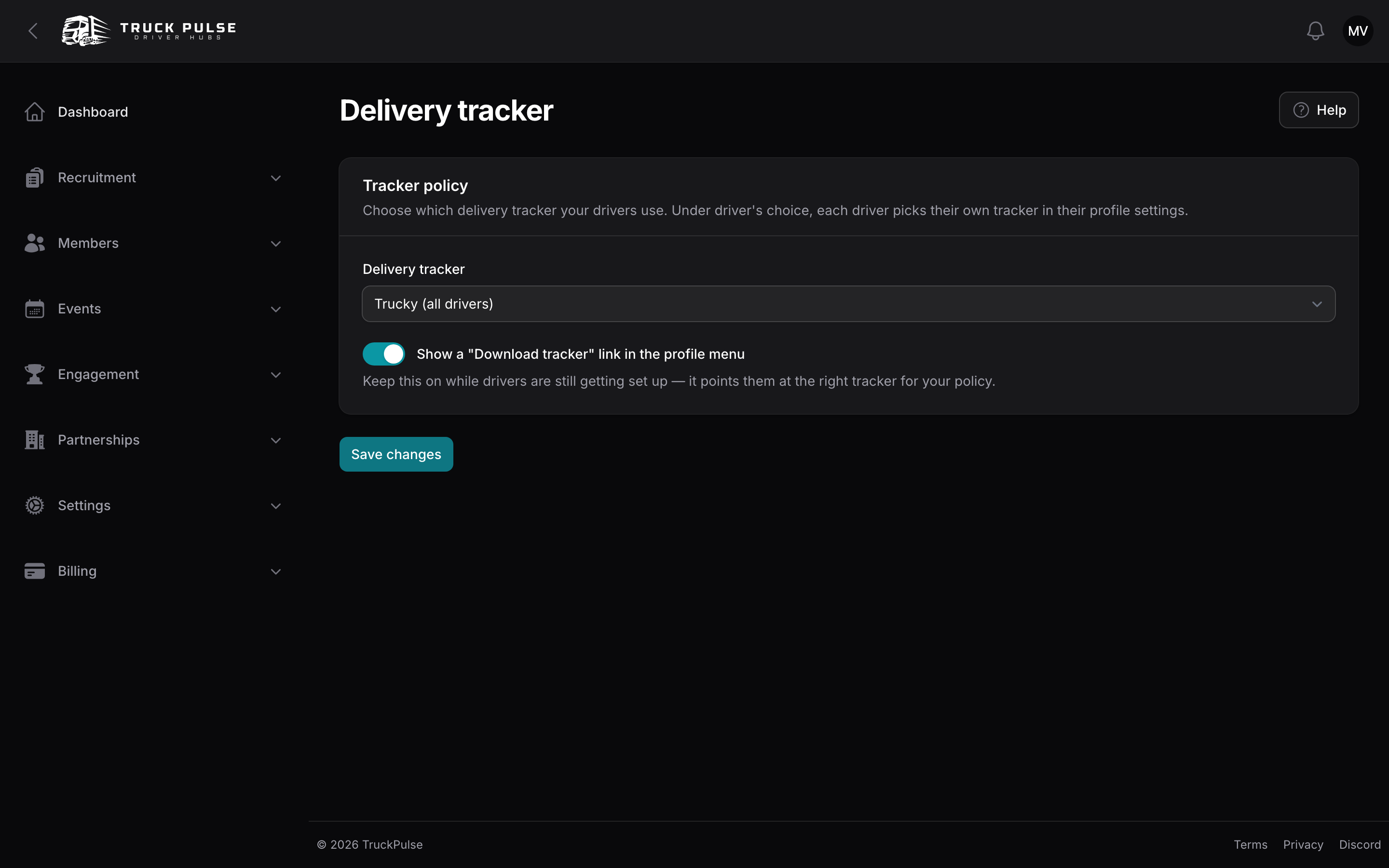
- Delivery tracker — pick one:
- Trucky (all drivers) — the default; every driver's deliveries come from Trucky.
- TruckersHub (all drivers) — every driver's deliveries come from TruckersHub (see below).
- Driver's choice — each driver picks their own tracker in their profile settings.
- Show a "Download tracker" link in the profile menu — keep this on while drivers are still getting set up; it points each driver at the download page for the right tracker.
Only a driver's effective tracker counts: if your policy says Trucky, deliveries a driver logs elsewhere do not double-count. Drivers can read how to install and run their tracker in the driver tracker guide.
TruckersHub
TruckersHub is the other delivery tracker Truck Pulse can read from, with its own connection page and its own ingestion settings. You can link both trackers and let the policy above decide which one counts for each driver.
See the TruckersHub guide for its setup.