
TruckersMP
Link your TruckersMP VTC to your Hub, import TMP events, and help drivers verify their accounts.
What linking gives you
Linking your TruckersMP VTC puts a verified badge behind your Hub and unlocks the event tools: import any TruckersMP event onto your event schedule with one click, browse your VTC's own events from inside the panel, or have new ones pulled in automatically. Drivers can also verify their personal TruckersMP accounts, so you know the person on your roster really is the account they claim.
Find your VTC ID
Your VTC ID is the number in your VTC's page URL on truckersmp.com:
https://truckersmp.com/vtc/12345
                          ^^^^^ this number
📷 Screenshot coming soon — a VTC page on truckersmp.com with the ID highlighted in the address bar.
Event IDs work the same way — the number at the start of the last part of an event URL:
https://truckersmp.com/events/67890-summer-convoy
                              ^^^^^ this number
Verify VTC ownership
The VTC link is verified: Truck Pulse checks with TruckersMP that the person linking the VTC is its owner. Before you start, make sure:
- Your own Truck Pulse account has Steam linked.
- You have verified your own TruckersMP account (below) — the ownership check compares your verified TruckersMP account against the VTC's owner.
- The VTC is not already linked to another Hub — a VTC can back only one Hub.
Then link it from Settings → General in your Hub panel (the setup wizard's TruckersMP step offers the same thing during onboarding — optional there, and you can always do it later from settings):
- In your Hub panel, go to Settings → General and find the TruckersMP section.
- Enter your VTC's number in TruckersMP VTC ID.
- Choose Verify & link VTC.
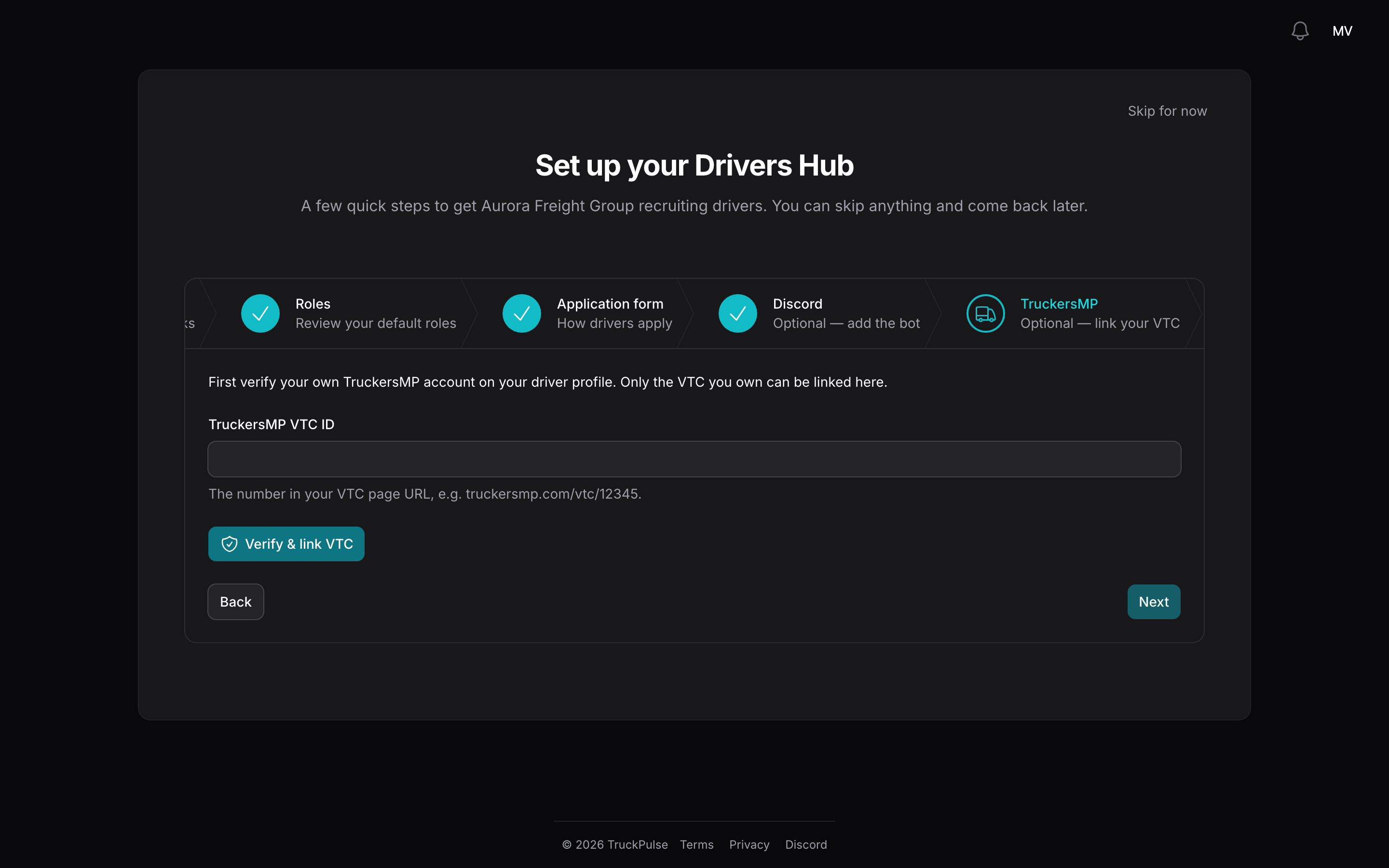
On success you will see "VTC linked" with your VTC's name. If the check fails, the message tells you why — most often the account linking is not the VTC owner on TruckersMP, or your own TruckersMP account is not verified yet.
To disconnect later, choose Unlink VTC in the same TruckersMP section of Settings → General. TruckersMP event syncing stops until a VTC is linked again — already imported events stay on your schedule.
Import TMP events
With (or without) a linked VTC, you can bring TruckersMP events onto your schedule:
- Go to Events → Import from TruckersMP in your Hub panel.
- Either paste an event URL or ID and import it, or browse the list — your linked VTC's events, or the global upcoming events when no VTC is linked — and import one with a click.
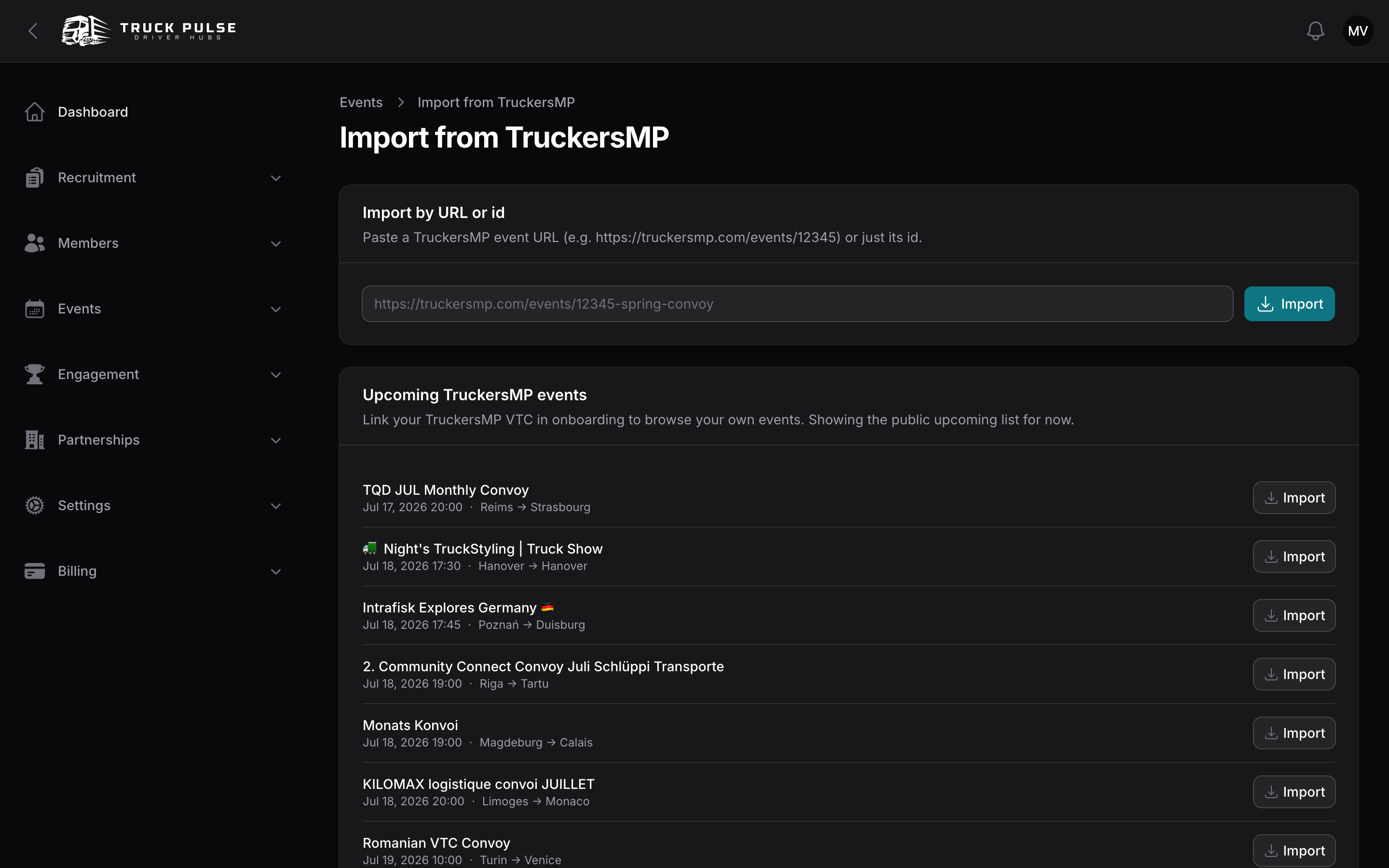
Importing the same event twice is safe — Truck Pulse tells you it is already on your schedule instead of duplicating it. If you would rather not add each event by hand, turn on Auto-import TruckersMP events in your event settings and the new events your linked VTC hosts are pulled in automatically.
Events your VTC has signed up to attend on TruckersMP can come in too. Use the Import attending events button on the same page, or turn on Auto-import TruckersMP events your VTC is attending. If your VTC later withdraws, the event is cancelled on your Hub. The full event workflow, including attended events, is covered in Events.
Driver account linking
Each driver can verify their own TruckersMP account from their profile page: they enter their TruckersMP ID (the number in their profile URL on truckersmp.com) and Truck Pulse confirms that the TruckersMP account belongs to the same Steam account they sign in with. That match is what makes the verified badge trustworthy — a driver cannot verify someone else's ID.
📷 Screenshot coming soon — a player profile on truckersmp.com with the numeric ID highlighted in the address bar.
Point new drivers at the driver quick start, which walks them through it step by step.