
TruckersHub
Link your TruckersHub VTC so deliveries, live drivers and driving stats flow into your Hub — plus its job ingestion settings.
What linking gives you
TruckersHub is a delivery tracker your drivers run alongside ETS2 or ATS — the alternative to Trucky. Link your TruckersHub VTC to your Hub and:
- Completed deliveries flow in automatically — they show on your Hub, count towards points, and can be announced in Discord.
- Drivers show as driving now while they are on the road, and each delivery gets a driving score from its telemetry.
You can link both trackers. Which one actually counts for a driver is set by your delivery tracker policy — see tracker settings.
Get your TruckersHub API token
In the TruckersHub dashboard, open integrations → API and copy your VTC API token.
📷 Screenshot coming soon — the TruckersHub dashboard's integrations → API page with the VTC API token.
Connect your VTC
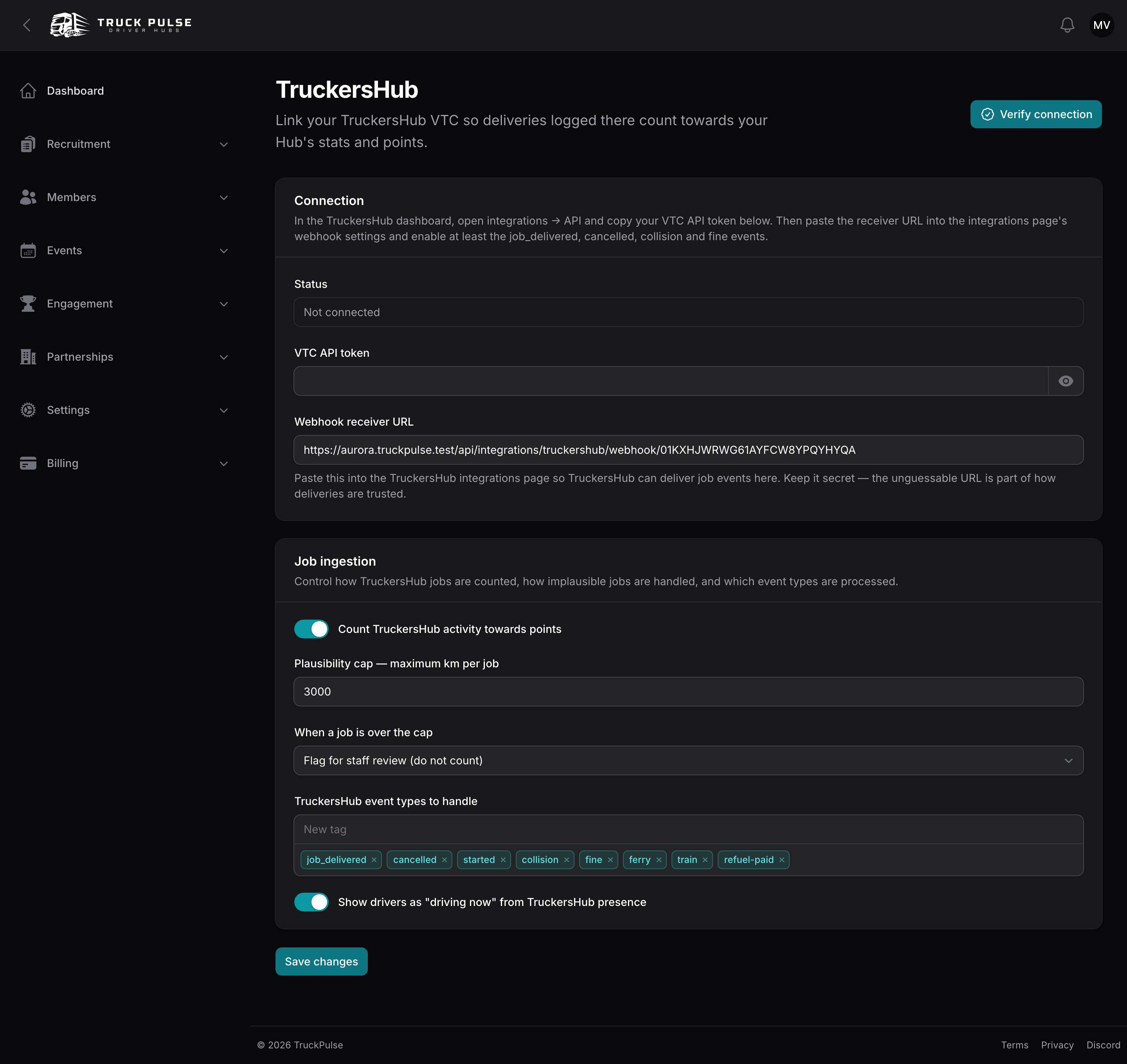
- In your Hub panel, go to Settings → TruckersHub.
- Paste the token into VTC API token and choose Verify connection. On success you will see "Connected to TruckersHub" with your VTC's name; if not, the message explains what to fix.
- Copy the Webhook receiver URL from the page and paste it into the TruckersHub integrations page's webhook settings, enabling at least the job_delivered, cancelled, collision and fine events.
- Press Test on the TruckersHub integrations page, then reload your Hub's TruckersHub page. A received test confirms TruckersHub can reach your Hub.
📷 Screenshot coming soon — TruckersHub's webhook settings with the receiver URL pasted in and the four event types enabled.
Keep the receiver URL secret. TruckersHub does not sign what it sends, so the unguessable address is part of how deliveries are trusted — and every delivery is re-fetched from TruckersHub before it is stored, so a forged webhook cannot invent a job.
A received test means the connection works. It does not mean deliveries have started — those begin when a driver finishes a job with the tracker running.
Check the connection status
At the top of Settings → TruckersHub there is a status card. It is the same view our support team sees, so you never have to ask us what is wrong — it is on your own page.
The badge tells you where the connection stands:
- Not connected — you have not entered a token yet, or you disconnected.
- Connected — TruckersHub accepted your token.
- Connection error — TruckersHub rejected the stored token. The card shows what TruckersHub said; copy a fresh token from their dashboard and verify again.
Under the badge is a line of plain-English guidance, and under that, when something has gone wrong, the actual error message.
You may also see:
- "N recent checks have failed, and we are still retrying." — an amber line next to a green badge. Your token is fine; TruckersHub is just not answering right now. It clears on its own, and the badge stays green however long it lasts — an outage at their end is not a reason to send you to re-enter a working token. If you have switched alerts on (below), you get one email once the run of failures gets long enough.
- "TruckersHub is not responding for anyone at the moment" — a service-wide outage rather than anything to do with your VTC. Do not regenerate your token; it will resume by itself.
The separate Webhook test field below answers a different question — whether TruckersHub can reach your Hub at all — so check the card for "is my token good" and that field for "is anything arriving".
If you would rather be told by email than notice it here, see Notifications.
Job ingestion settings
The Job ingestion section on Settings → TruckersHub controls what happens to each delivery as it arrives:
| Setting | What it does |
|---|---|
| Count TruckersHub activity towards points | Off still records deliveries — they just stop counting towards points and ranks. |
| Plausibility cap — maximum km per job | The longest delivery you consider believable. Anything longer is treated as an outlier. |
| When a job is over the cap | Flag for staff review (the default, stored but not counted), Count it anyway, or Discard it. |
| TruckersHub event types to handle | Which events are processed. Removing one makes the Hub acknowledge and ignore it. |
| Show drivers as "driving now" from TruckersHub presence | Feeds the driving-now roster from TruckersHub's live presence. |
| Minimum delivery distance to post to the Discord job feed (km) | The shortest delivery announced in Discord. Leave at 0 to announce everything. |
The minimum-distance setting applies to TruckersHub deliveries only — Trucky has its own on its own page, so you can announce every TruckersHub run while filtering short Trucky hops, or the other way round.
Announce deliveries in Discord
Deliveries from both trackers announce through one Discord event, so by default they share a channel. If you would rather keep them apart, the Discord routing page has a per-tracker override — see sending each tracker's deliveries to its own channel.
Make the deliveries count
Linking is not enough on its own: a driver's deliveries only count when TruckersHub is their effective tracker. On Settings → Delivery tracker, either set the policy to TruckersHub (all drivers) or allow Driver's choice and let each driver pick. Deliveries a driver logs on a tracker that is not theirs are recorded but never double-counted.
Drivers can read how to install and run their tracker in the driver tracker guide.