
Driver applications
Build your application form, review applications and set the rules drivers must meet to apply.
Where drivers apply
Every Hub has a public apply page at your-hub.truckpulse.app/apply. Drivers sign in with Steam,
see your Hub's requirements at a glance, fill in your application form and send it. Right after
sending they see your confirmation message, and the page shows their application status from then
on.
If a driver can't apply, the page explains why instead of showing the form — for example "Applications are closed", "Please wait before reapplying" or "A verified TruckersMP account is required" — always with the next step to take.
If your Hub is linked to Trucky, applications made there can flow into the same queue — see Trucky.
Build the application form
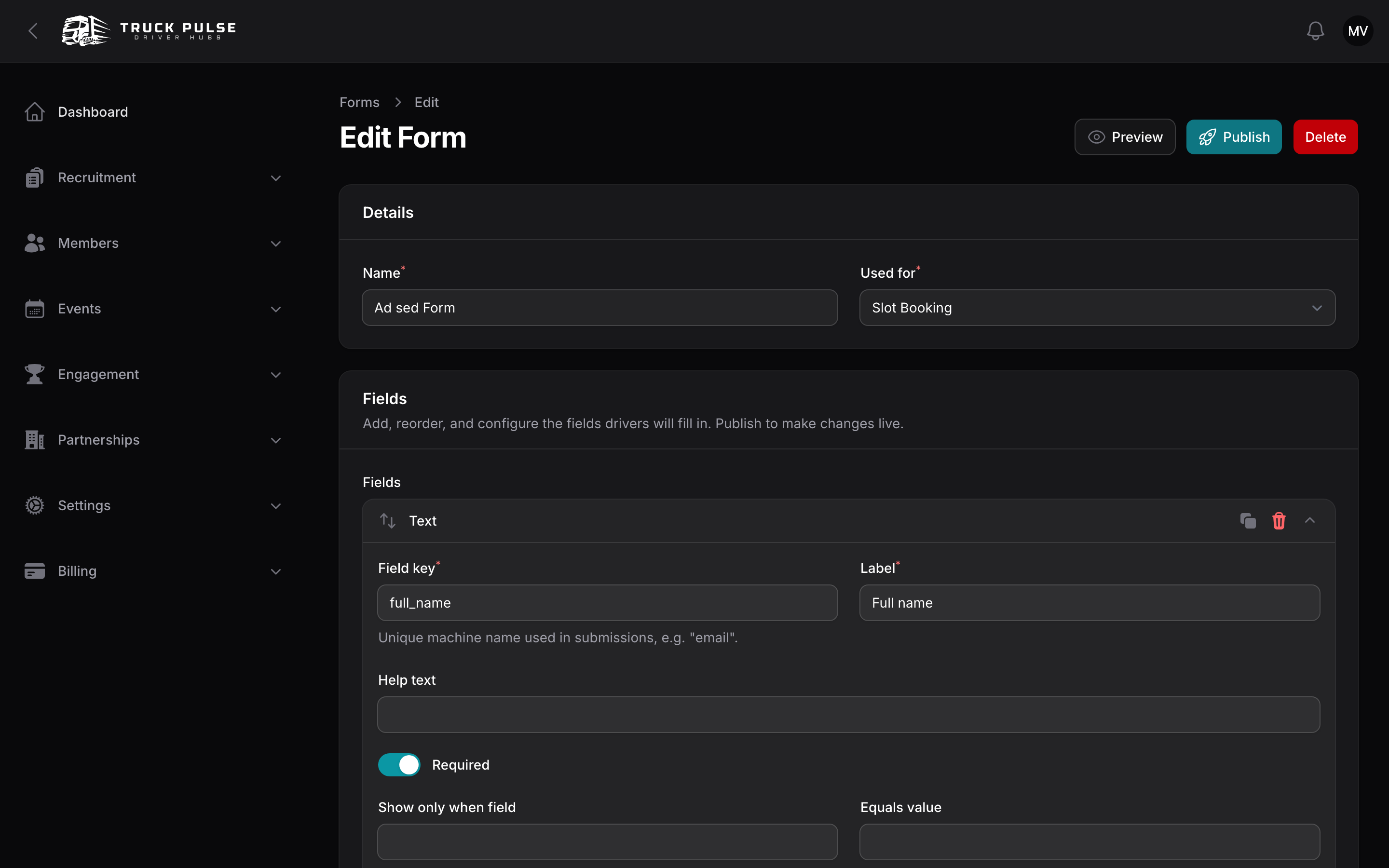
Your Hub starts with a published starter form (why they want to join, their trucking experience and an optional TruckersMP profile link), so drivers can apply from day one. To make it your own:
- Go to Recruitment → Forms and open the form used for Driver Application.
- Under Fields, press Add field and pick a type: Text, Textarea, Select, Multi-select, Checkbox, Radio, Number, Date, File, Section heading or Info block.
- Give each field a Label, optional Help text and a Required toggle. Fields can also be shown conditionally with Show only when field and Equals value.
- Drag fields to reorder them, and use Preview to check the result.
- Press Publish when you're happy. Publishing creates a new immutable version — existing applications keep rendering against the version they answered, so old answers never break.
Editing the form needs the "Manage forms" permission; reviewing applications is covered by the Applications permissions — see Roles & permissions.
Review applications
New applications land in Recruitment → Applications. Each application moves through a pipeline: Pending → Under Review → Accepted or Rejected (a driver can also withdraw). You can add extra stages of your own — see Application settings.
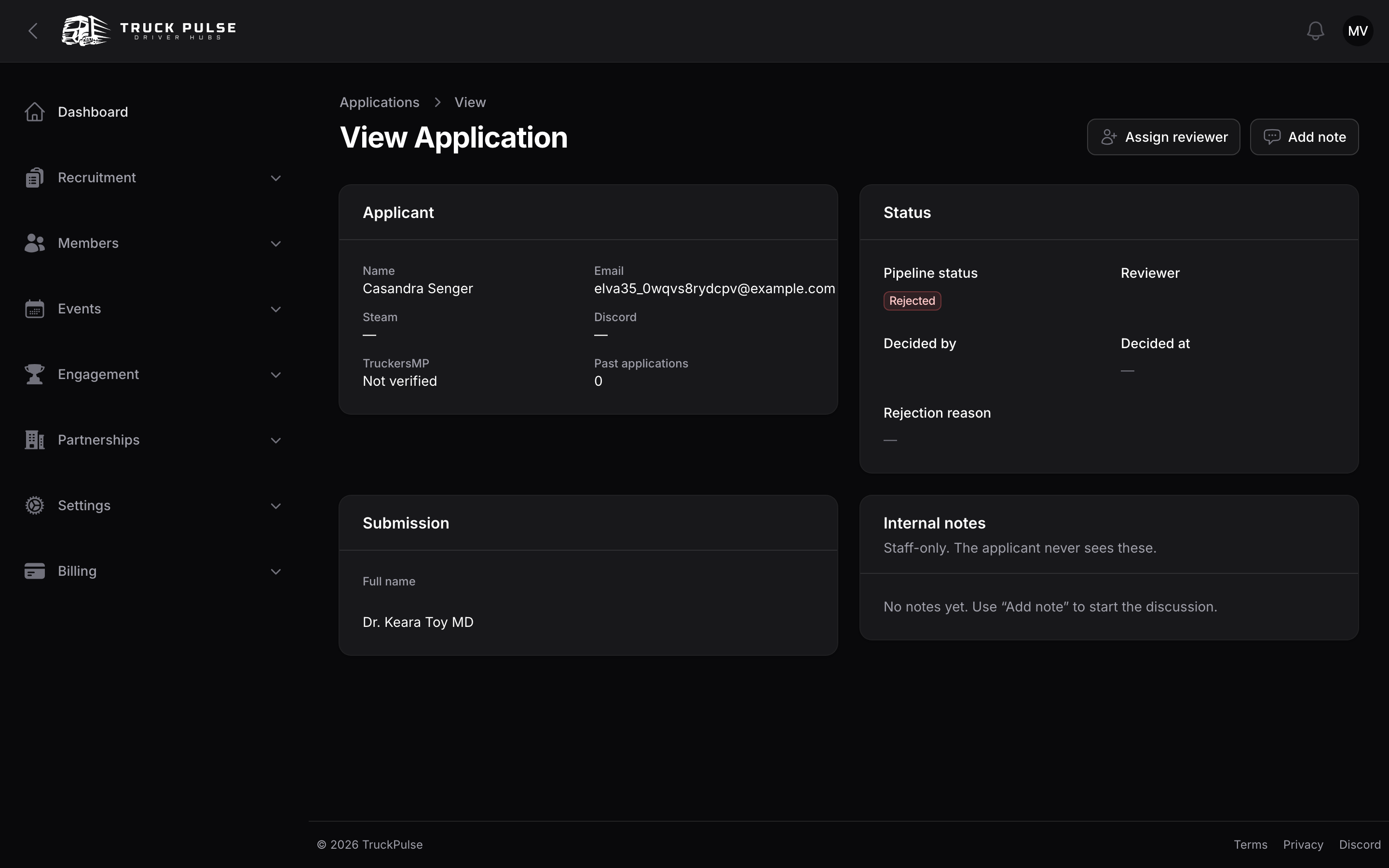
Open an application to see the applicant, their answers, the current status and the internal notes thread. From there:
- Assign reviewer — hand the application to a member of staff.
- Start review — move a pending application into review.
- Move status — move it between review stages, including your custom ones.
- Add note — leave an internal note. Notes are staff-only; the applicant never sees them.
Accept or reject
- Open the application and press Accept or Reject.
- For a rejection, pick a Reason category — the list comes from your application settings, so rejections stay consistent.
- Edit the Message to applicant. It's prefilled with your Hub's template, and the variables
{{ applicant_name }},{{ vtc_name }}(and{{ reason }}on rejections) are substituted when sent.
Accepting an application activates the driver's membership on your roster and grants them the Driver role; the temporary Applicant role is removed. Rejecting starts the reapply cooldown. Either way, the applicant is notified with your message — in-app, by email and by Discord DM, depending on their preferences.
Staff can also decide applications from Discord with /application accept and
/application reject — see slash commands.
Two things can block an acceptance:
- Driver limit reached — accepting would exceed your plan's driver limit. See Billing & limits.
- Applicant belongs to another Hub — your Hub doesn't admit members of other Hubs. You can change this in roster settings.
Application settings
Settings → Driver applications controls whether applications are open and the requirements drivers must meet to apply. The form itself is edited in the form builder above.
| Setting | Default | What it does |
|---|---|---|
| Accept new applications | On | Turn off to pause recruiting — the application form closes but existing applications stay in review. |
| Require a verified TruckersMP account | Off | Turn on if you only recruit drivers who play on TruckersMP. |
| Require a linked Discord account | Off | Handy when your Hub runs on Discord — every accepted driver can be reached there from day one. |
| Cooldown after rejection (days) | 30 | How long a rejected applicant waits before they can apply again. Set to 0 to let them reapply straight away. |
| Maximum pending applications per user | 1 | Raise this only if you accept applications for several positions at once. |
| Confirmation message | A friendly "thanks for applying" note | Shown to applicants right after they send their application — a good place to say how long a decision usually takes. |
| Rejection reason categories (one per line) | Insufficient experience, Incomplete application, Does not meet requirements, Other | Offered to your staff when they reject an application. |
| Custom pipeline statuses (one per line) | None | Add extra review stages like "Interview" or "Trial run" if your recruiting has more steps than pending and decided. |
Related guides
- Members & roster — what happens after a driver is accepted.
- Roles & permissions — who can review and decide applications.
- Trucky — syncing applications from Trucky.