
Driver reports
Let members (and optionally the public) report a driver to your staff, and triage those reports.
What driver reports are
Driver reports give your community a private way to flag a problem with one of your drivers — conduct in a convoy, cheating, harassment — straight to your Hub staff. Staff review every report; who filed it is never shared with the reported member.
Driver reports are an Elite plan feature — see Billing & limits. On other plans the settings page shows an upgrade prompt instead of the form.
Reports are how a person raises a problem with a driver. For text that is checked automatically before anyone sees it, see the content filter — the two queues sit side by side in Members.
Where reports come from
Members report from the driver panel: Members → Report a member at /app lists the
roster; pressing Report on a driver asks What is the problem? (a category), optional
Details and up to three images as Evidence (optional).
The public can report too, if you opt in: a Report a driver button appears on your Hub's public profile. Visitors name the driver, pick a category and can leave an email; the form is rate-limited and capped per day to keep spam out. This is off by default — see Report settings.
Triage reports
Reports land in Members → Reports in the Hub panel, with a badge counting open ones. Each report shows when it was filed, the reported member, the category, its source (Member or Public), its status — New, Reviewing, Resolved or Dismissed — and an Overdue flag when a report has waited too long.
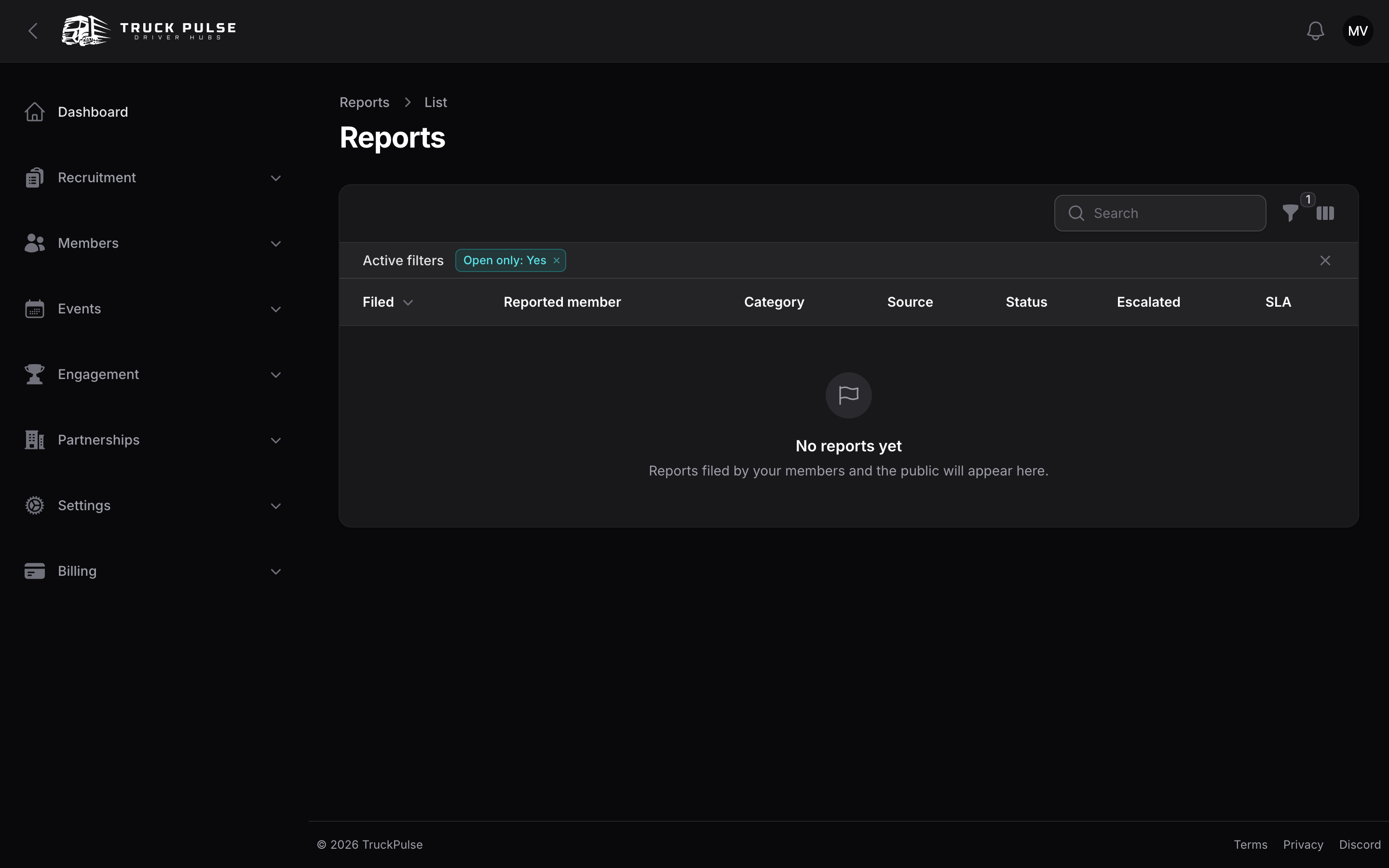
Open a report to see the details, the evidence (staff-only, served through short-lived signed links) and the reporter — that section is marked staff-only and is never shared with the reported member. From there:
- Review / notes — take internal notes while you look into it.
- Resolve — close the report with a Roster action: No roster action — just resolve, Record a warning note on the member or Remove the member from the Hub, plus an internal resolution note. Removal works exactly like removing from the roster.
- Dismiss — close it with an internal reason when no action is needed.
- Escalate to platform — forward serious cases (cheating rings, harassment across Hubs) to the Truck Pulse safety team. The report stays open in your queue so you can still resolve it for your own records.
Triage needs the "Manage reports" permission; "View reports" gives read-only access to the queue. See Roles & permissions.
Report settings
Settings → Reports holds the per-Hub options:
| Setting | Default | What it does |
|---|---|---|
| Report categories | Conduct, Exploit or cheating, Harassment, Other | The categories reporters pick from. Leave empty to use the standard set. |
| Show the public "report a driver" form on the profile | Off | Turn on to let people outside your Hub report a driver from your public profile — for example after an incident in a shared convoy. |
| Notify staff in Discord on a new report | On | Pings your staff channel when a report arrives — see Discord. |