
Events & convoys
Schedule convoys, training sessions and meetings, import TruckersMP events, and run RSVPs and attendance.
Where events live
Everything in this guide happens in the Hub panel under the Events group in the sidebar:
| Page | What it's for |
|---|---|
| Events | The schedule — create, edit, publish, cancel |
| Event types | The labels events are filed under (Convoy, Training, Meeting, …) |
| Calendar | The same schedule as a month view |
| Import from TruckersMP | Bring a TruckersMP event onto your schedule |
Creating, editing, cancelling, importing and marking attendance each have their own permission
(events.create, events.edit, events.cancel, events.import, events.attendance), so you can split
the work across your staff team — see /admin/roles-permissions.
Create your first event
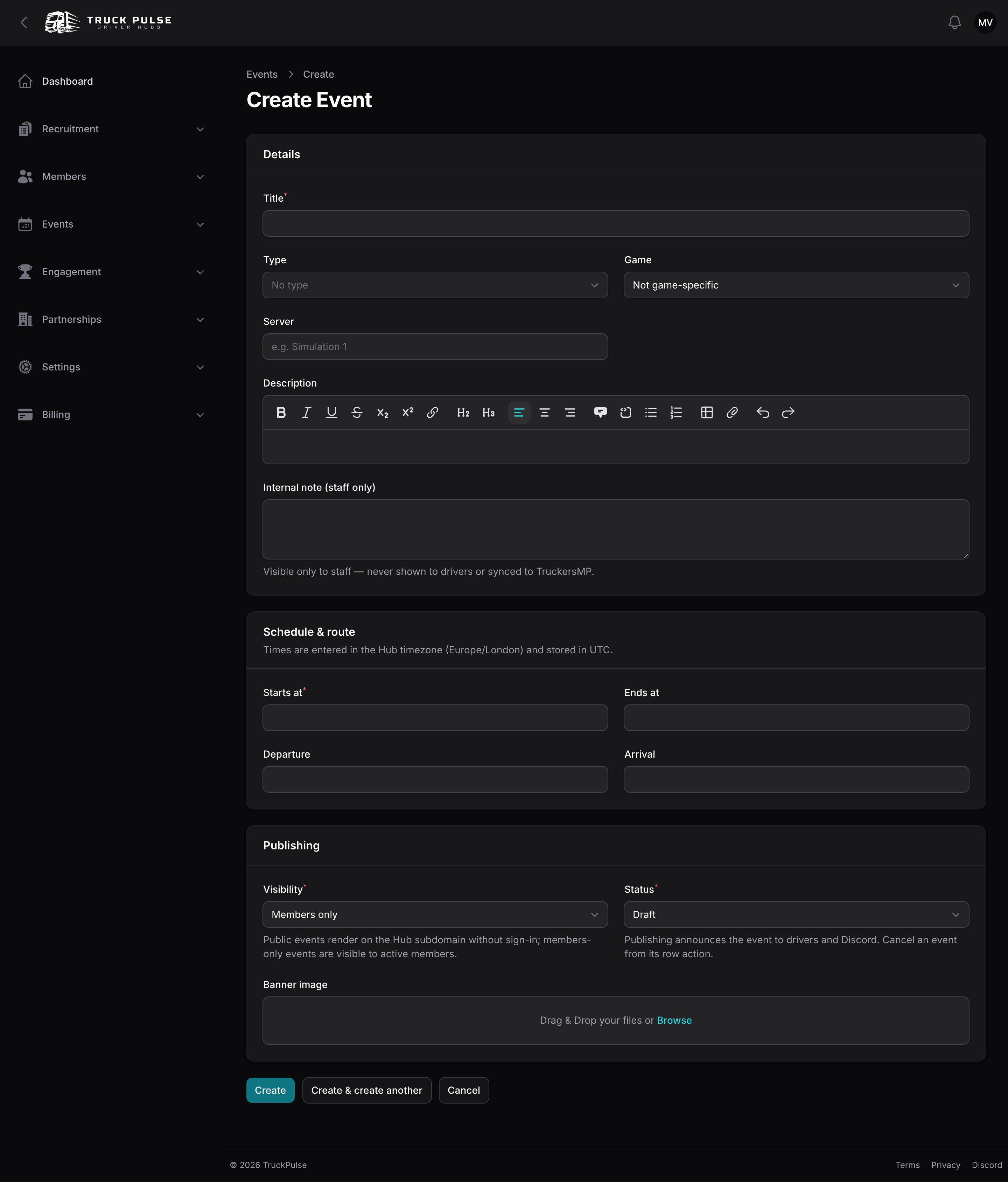
- Go to Events and choose Schedule an event (or New event once the list has entries).
- Fill in the Details section: the Title, an optional Type, the Game (or leave it Not game-specific), the Server, and a Description drivers will see. The Internal note (staff only) field is never shown to drivers.
- Set the Schedule & route: Starts at, Ends at, Departure and Arrival. Times are entered in your Hub's timezone and stored safely behind the scenes.
- In Publishing, pick the Visibility and Status, and optionally upload a Banner image.
- Save. Drafts stay invisible to drivers until you publish.
Types
Every Hub starts with three editable types — Convoy, Training and Meeting — each with a colour and icon. Rename, recolour or replace them under Event types; they are yours.
Visibility
An event is either Members only (visible to your active members) or Public (shown on your Hub's public site without signing in). New events take the default you set in Event settings, so a fresh event is never accidentally public.
Publishing and cancelling
Switching Status from Draft to Published announces the event to drivers — and to Discord, if you've routed the announcement (see /integrations/discord). Cancelling is deliberate: use the Cancel event row action on the events list. It pulls the event from the schedule, notifies everyone who responded, and announces the cancellation to Discord. A cancelled event can't be re-published from the form.
Import a TruckersMP event
If your convoy is already announced on TruckersMP, don't retype it.
- Go to Events → Import from TruckersMP.
- Either paste the event's URL or id and import it, or browse the list — it shows your linked VTC's events when your Hub has one linked (see /integrations/truckersmp), otherwise the global upcoming list — and import with a click.
- The event lands on your schedule already published. Importing the same event twice is harmless — you'll just see Already imported. Deleted an import by mistake? Import it again and it comes back — same event, same RSVPs — refreshed from TruckersMP and published.
An imported event stays in sync with TruckersMP: its title, game, server, route and start time are updated automatically and can't be edited in the Hub panel. The internal note, visibility and event type remain yours to edit. If the event changes time or is cancelled upstream, staff get a TruckersMP event changes notification.
Prefer a hands-off setup? Turn on Auto-import TruckersMP events in Event settings and every event your linked VTC hosts is pulled in on the scheduled sync, with the visibility and event type you choose there. To pull in everything at once right now, press Sync now on the import page. Events you delete stay deleted — neither the scheduled sync nor Sync now brings an import back. Only an explicit ask does: importing it yourself, or accepting a partner's invitation for that event (see Partnerships), restores it — same event, same RSVPs.
Events your VTC is attending
Signing your VTC up for another VTC's convoy on TruckersMP can put it on your Hub schedule too, so your drivers can RSVP to it without staff retyping it. This is separate from the events your VTC hosts, and it needs a linked VTC.
- Once, right now: on Events → Import from TruckersMP, press Import attending events. It runs in the background and the bell tells you how many events were imported.
- Automatically: turn on Auto-import TruckersMP events your VTC is attending in Event settings. The scheduled sync then checks your VTC's attending list every hour. This is a separate setting from Auto-import TruckersMP events, so you can use one, both or neither.
Only events that haven't started yet are imported. Events your own VTC hosts are left to the hosted import above. Attended events use the same Imported event visibility and Imported event type defaults, and show as TruckersMP attending in the events list's Source column.
If your VTC withdraws its attendance on TruckersMP before the event starts, the event is cancelled on your Hub. To make sure a brief TruckersMP hiccup never cancels a convoy, this happens in two steps. The first check that finds the event missing only notes it. The event is cancelled only if it is still missing on a check at least 30 minutes later, which is usually the next hourly run. Pressing Import attending events twice in a row doesn't speed this up, and if the event reappears in between, nothing happens.
As with any cancellation, everyone who responded is told, and Discord gets the cancellation if you route it. Staff with edit access get a notification explaining that the event was cancelled because your VTC is no longer attending.
Changed your mind? If your VTC signs up for the event again on TruckersMP, the next check brings it back: it's published again with its RSVPs intact, and staff get a back on notification. This only happens to events cancelled because of a withdrawal. An event a staff member cancelled by hand stays cancelled.
All of this only applies to events that came in because your VTC was attending. An event you imported yourself or accepted through an invitation is never cancelled because of your attendance. If TruckersMP can't be reached, nothing is imported, cancelled or restored; the next run tries again.
RSVPs
Drivers respond Going, Interested or Declined — from the Events page in their driver panel, or from the event's page on your public site. They can change or cancel their response until the RSVP window closes: by default that's the event start, or earlier if you set an RSVP cutoff in Event settings.
Drivers who said they're going get reminders before the start — 24 hours and 1 hour ahead by default, both editable in settings.
Attendance (roll-call)
After the convoy, record who actually showed up — this is what feeds attendance points and activity stats.
- On the Events list, open the Attendance row action.
- The roster lists everyone who RSVP'd going or interested. Use Mark present per driver, or select several and Mark selected present.
- Someone joined without RSVPing? Use Add walk-in and pick them from your members.
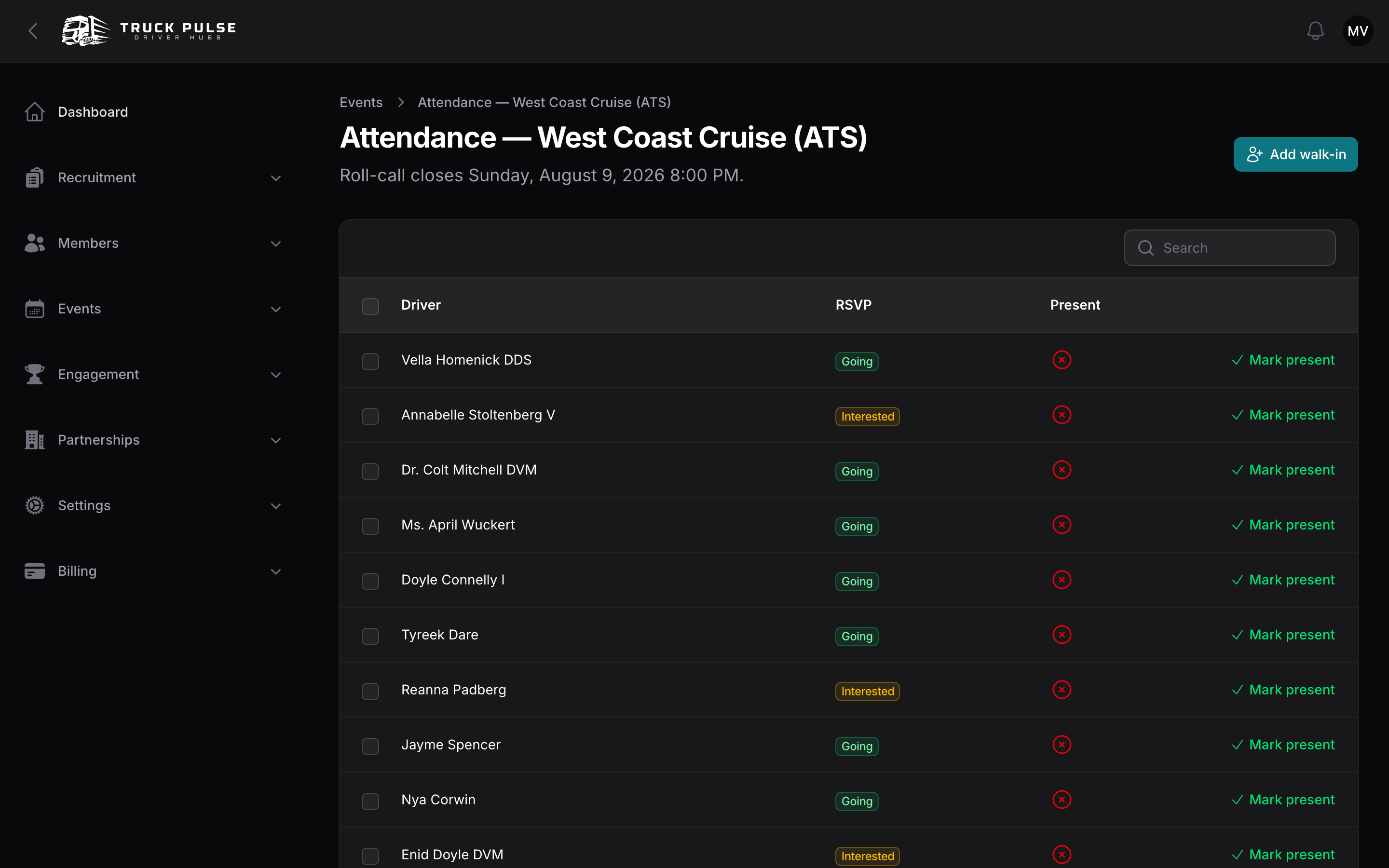
The page shows when roll-call closes — by default 48 hours after the event starts (the Attendance lock setting). After that the sheet locks and can't be changed. Marking a driver present is what triggers the Attend an event points rule, and a re-confirmation never awards twice — see /admin/points.
When the sheet locks, anyone who RSVP'd going but wasn't marked present counts as a no-show. If your Hub has an Event no-show points rule, they're charged it then — once, and only if you took roll-call for that event (at least one driver marked present). Drivers on an approved leave that day are excused by default — see Penalties.
The public events page
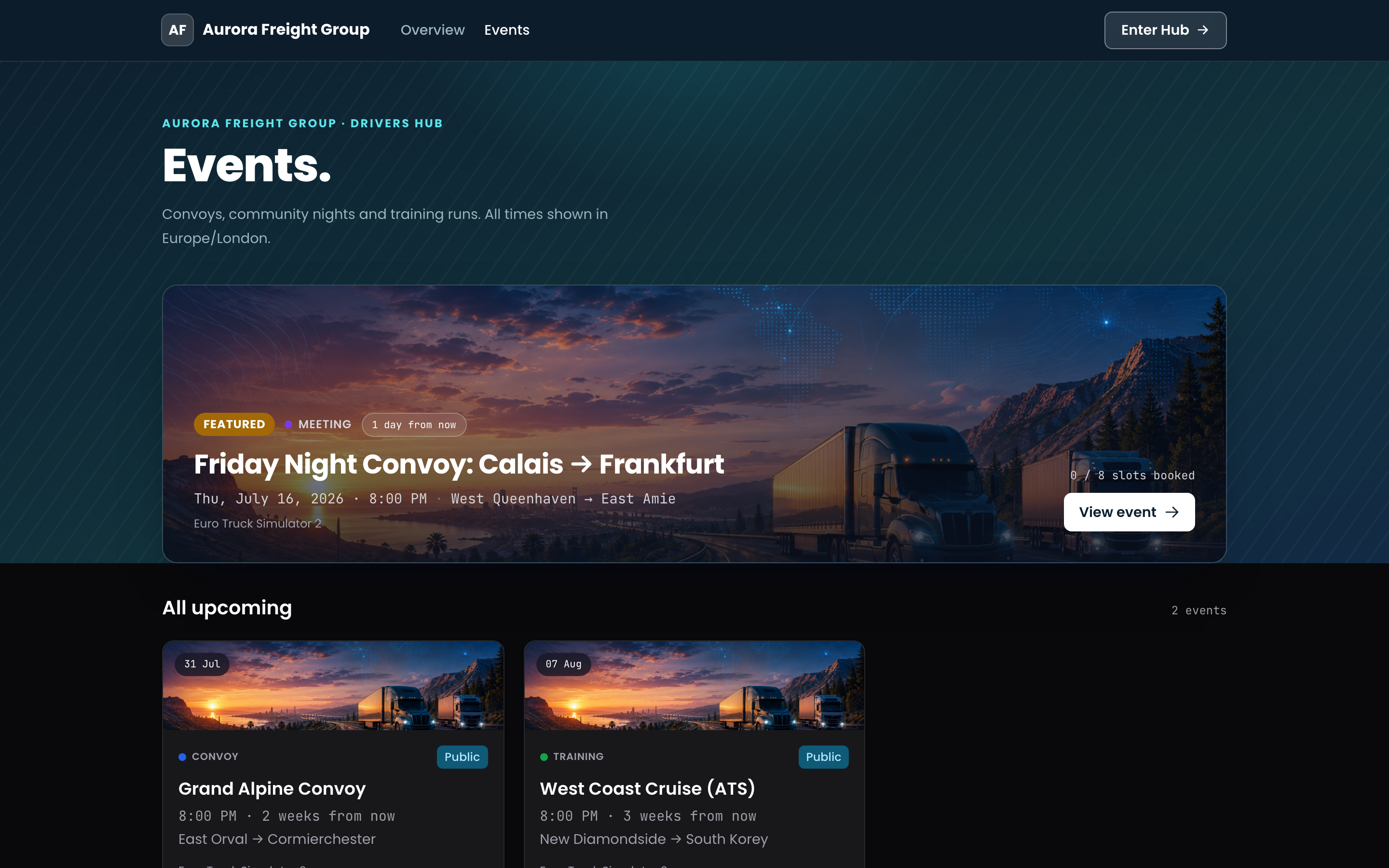
Your Hub's public site lists published events at https://{your-slug}.truckpulse.app/events. Guests see
public events; signed-in active members also see members-only ones. Each event has its own page with the
route, banner, RSVP buttons and — depending on your Attendee list visible to setting — who's going.
If the event has slot booking turned on, the booking page is linked from here too (see /admin/slot-booking).
Event settings
Go to Settings → Events in the Hub panel (needs the update-settings permission). One page holds every Hub-wide event default:
| Setting | Default | What it does |
|---|---|---|
| Default event visibility | Members only | What a freshly created event starts as |
| Auto-import TruckersMP events | Off | Pull in the events your linked VTC hosts automatically |
| Auto-import TruckersMP events your VTC is attending | Off | Pull in other VTCs' upcoming events your VTC signed up for, cancel them if it withdraws, and restore them if it signs up again |
| Imported event visibility | Members only | What imports start as — keep members-only to review before publishing |
| Imported event type | Blank | A type label (e.g. "Convoy") applied to every import |
| RSVP cutoff (hours before start) | 0 | Close RSVPs early for a firm headcount; 0 keeps them open until start |
| Attendance lock (hours after start) | 48 | How long staff have to finish roll-call |
| Send event reminders | On | Remind "going" drivers before the start |
| Reminder timings (hours before start) | 24, 1 | One reminder per value |
| Attendee list visible to | All members | Restrict to Staff only if drivers prefer privacy |
| Allow external event invitations | Off | Let other VTCs invite your Hub to convoys — see /admin/partnerships |
| Blocked invitation senders | Empty | Hub slugs or emails whose invitations are dropped quietly |
| Auto-accept invitations from partner VTCs | Off | Reserved for partner workflows |
| Slot hold duration (minutes) | 5 | How long a convoy slot stays reserved during booking — see /admin/slot-booking |
| Show live viewer count on booking pages | On | The "N companies viewing" line on booking pages |
Related guides
- /admin/slot-booking — let other VTCs book convoy slots on your events
- /admin/points — award points for attendance
- /admin/partnerships — invite another VTC to your convoy
- /driver/events — what the flow looks like for your drivers