
Getting started
Create your Drivers Hub, run through the setup wizard and find the settings that shape how your Hub looks and works.
Create your Hub
Your Drivers Hub is your VTC's home on TruckPulse — its public profile, application form, roster, events and everything else live under one address. Each account can create one Hub.
To create yours:
- Sign in, then go to truckpulse.app/hubs/create.
- Enter a Hub name — it is shown across TruckPulse, so use the name your community knows.
- Pick a Hub address. This becomes your Hub's web address (for example
midnight-express.truckpulse.app). It must be 3–32 characters using lowercase letters, numbers and hyphens; the form checks availability as you type and suggests one from your name until you edit it yourself. - Answer Which games does your Hub run? — choose any of Euro Truck Simulator 2, American Truck Simulator and Other. Select all that apply.
- Pick your Primary language and Region.
- Set your Recruiting status: Recruiting (accepting applications), Invite only or Closed. You can flip this any time.
- Press Create your Hub.
The live preview beside the form shows how your Hub will appear in the public directory.
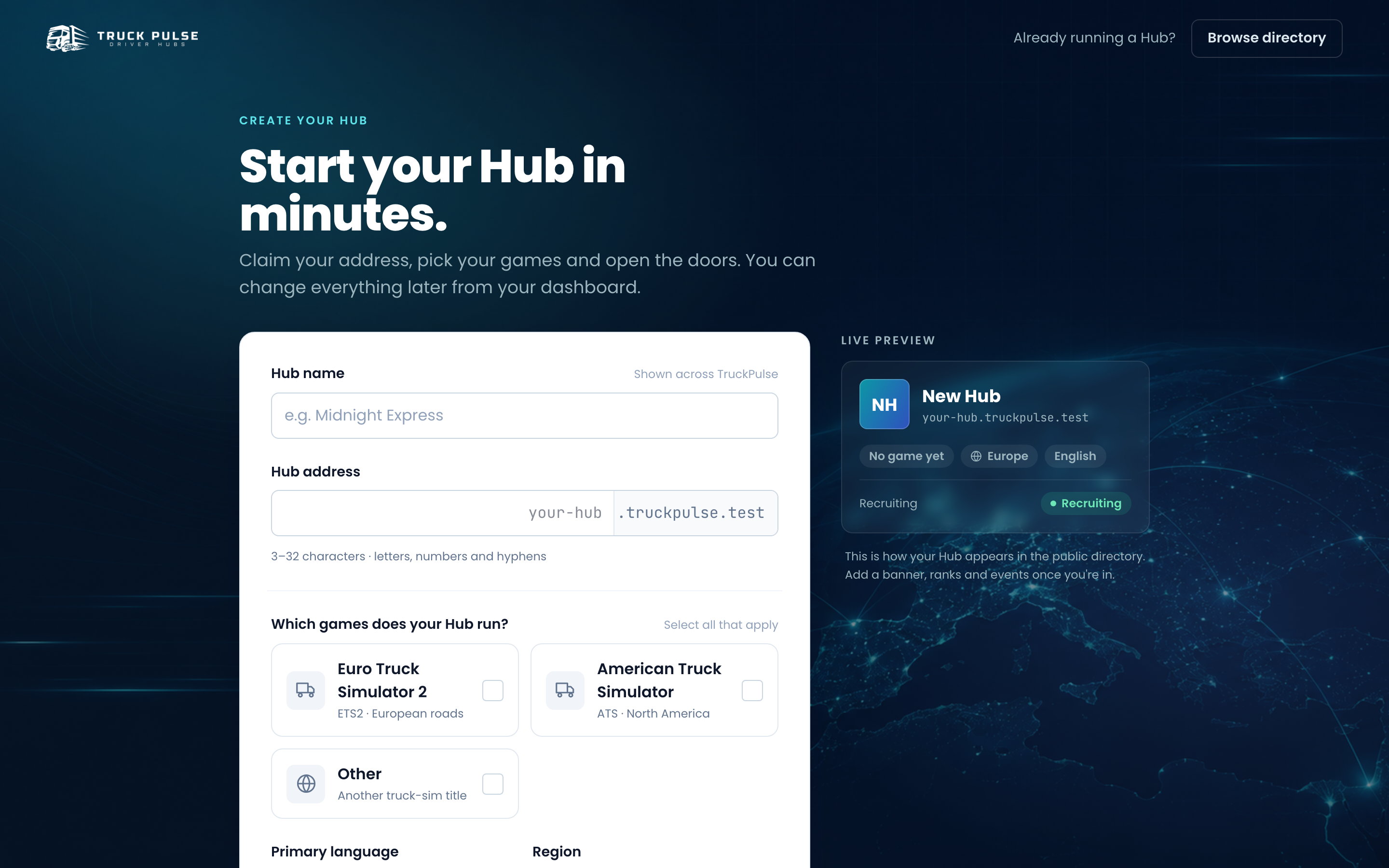
Creating the Hub makes you its Owner, sets up the default roles (see Roles & permissions) and takes you straight into the setup wizard.
The setup wizard
The wizard walks you through the settings a new Hub owner would otherwise have to hunt for. Every step can be skipped — you can leave at any point and your dashboard checklist will nudge you back until setup is finished.
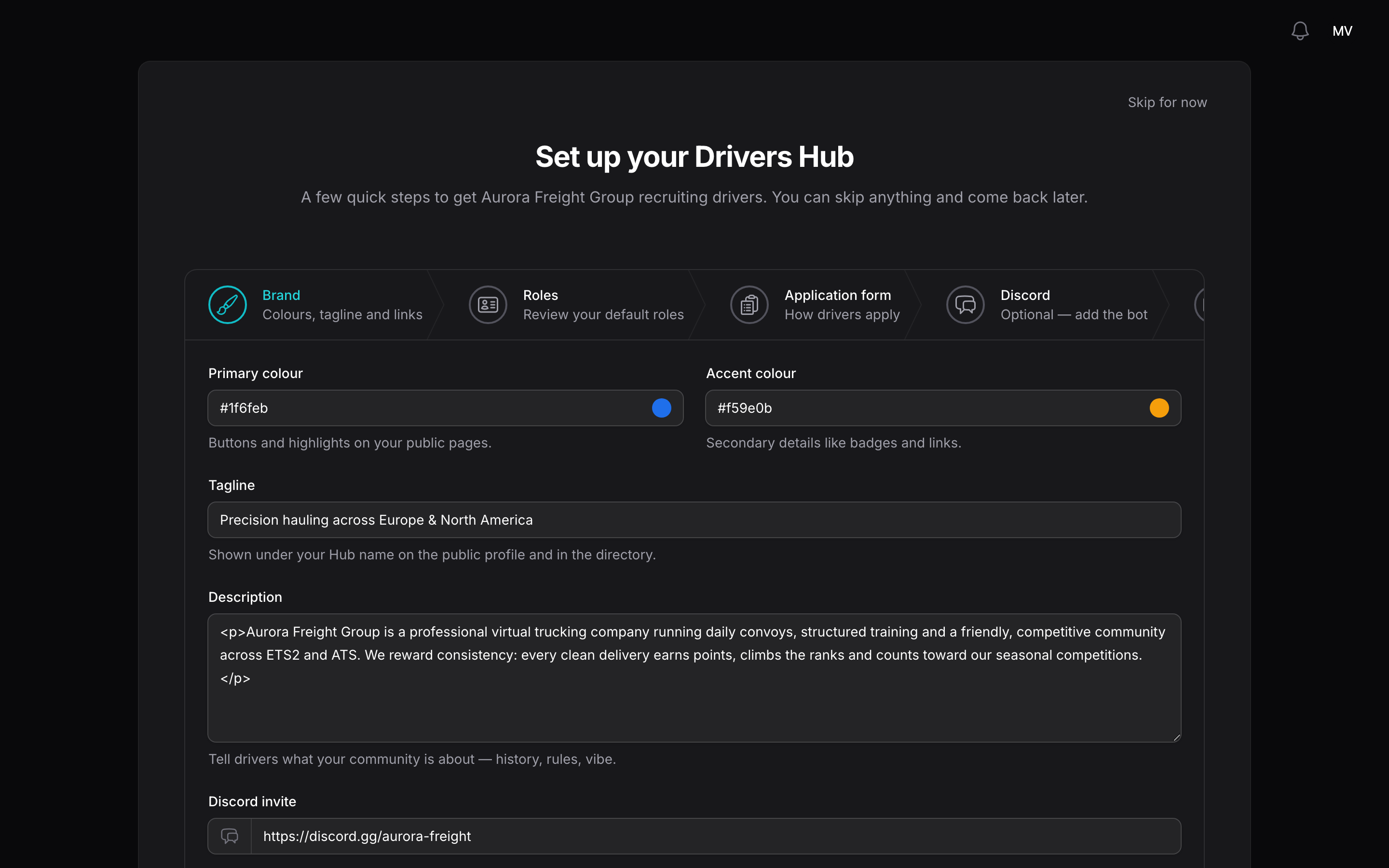
- Brand — your Hub's colours, tagline, description and links. These are the same fields as the Branding settings page, so anything you enter here can be changed there later. Logo and banner uploads live on the Branding page.
- Roles — a review of the five roles your Hub starts with. Press Open Roles to rename, recolour or fine-tune them. See Roles & permissions.
- Application form — a starter driver application form is ready for you. Press Customise the form to edit it; finishing setup publishes it so drivers can apply. See Driver applications.
- Discord (optional) — press Add the TruckPulse bot to connect your Discord server, pick a Test channel and press Send test message to confirm notifications arrive. Channel routing opens the full Discord settings. See Discord.
- TruckersMP (optional) — enter your TruckersMP VTC ID (the number in your VTC page URL,
e.g.
truckersmp.com/vtc/12345) and press Verify & link VTC. You first need a verified TruckersMP account on your driver profile, and only the VTC you own can be linked. See TruckersMP. - Trucky (optional) — already running on Trucky? Connect your company, then press Import from Trucky to pull your members, roles and branding into the Hub in one click. Re-running the import is always safe — nothing is duplicated. See Trucky.
- Plan — pick a plan. Free is the baseline every Hub already has; if you pick a paid plan, finishing setup takes you to the billing page to complete checkout. See Billing & limits.
Press Finish setup on the last step to complete the wizard.
Until setup is finished (or skipped), a Finish setting up your Hub banner sits at the top of your driver dashboard with a Continue setup button back into the wizard — only staff who can update Hub settings see it. Dismiss clears it for your whole admin team.
Where settings live
Signing in always lands you on the driver panel at your-hub.truckpulse.app/app — staff and
drivers share the same home. From there, open the avatar menu in the top-right corner and choose
Hub management to reach the staff panel.
Everything below sits behind Settings in the Hub panel sidebar at
your-hub.truckpulse.app/hub — clicking it opens the settings area, with its pages grouped into
Workspace, Public site, Modules and Integrations sections. These pages are
available to the Hub owner and to staff whose role lets them update Hub settings — see
Roles & permissions.
General settings
Settings → General holds settings that belong to the Hub as a whole.
- Timezone — pick the timezone most of your drivers share. Leave windows, deadlines and weekly boards all follow it. Until you change it, the Hub uses the platform default (UTC).
Branding
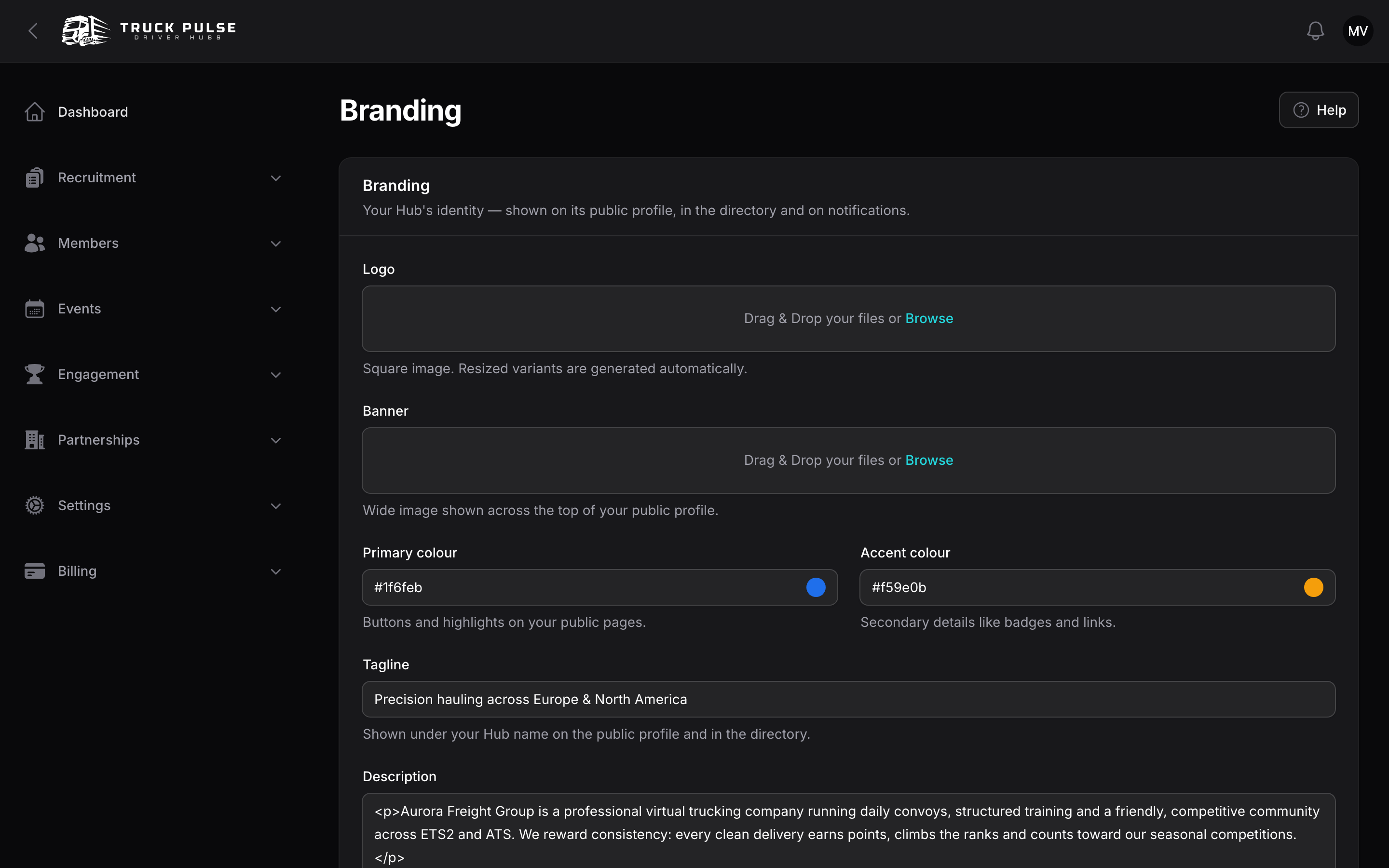
Settings → Branding is your Hub's identity — shown on its public profile, in the directory and on notifications.
| Field | What it does |
|---|---|
| Logo | Square image; resized variants are generated automatically. |
| Banner | Wide image shown across the top of your public profile. |
| Primary colour | Buttons and highlights on your public pages. |
| Accent colour | Secondary details like badges and links. |
| Tagline | One line shown under your Hub name on the public profile and in the directory (up to 120 characters). |
| Description | Tell drivers what your community is about — history, rules, vibe. Plain text, up to 5,000 characters. |
| Discord invite | Your server's invite link. |
| Website | Your community website. |
| TruckersMP VTC page | Your VTC page on TruckersMP. |
| Partners section heading | What your public profile calls its partners section — e.g. "Allies" or "Friends of the Hub". |
The Logo and Banner fields show the images your Hub currently uses. To swap one, remove it with the × on the preview, add the new image and save. To take it down entirely, remove it and save without adding a new one.
Press Save changes when you're done. Emptying an optional field puts it back to its default —
the default primary colour is teal (#0e7682) and the accent is amber (#f59e0b). Use View
public page in the page header to see the result exactly as a visitor does — it opens your public
profile in a new tab, bypassing the signed-in redirect to the driver panel.
Public profile
Settings → Public profile decides which sections appear on your Hub's public profile page. Hidden sections are removed from the page entirely — they never reach the visitor's browser.
| Toggle | Default |
|---|---|
| Show member count | On |
| Show roster preview | Off |
| Show partners section | Off |
| Show events preview | Off |
The roster preview puts a handful of your drivers on the public profile — nice social proof, but leave it off if members prefer not to be listed publicly.
Note that while you are signed in, visiting your Hub's home page ({hub}.truckpulse.app) takes you
straight to the driver panel — members and staff alike land on their dashboard, not the recruiting
page. To check how your public profile looks to visitors, use the View public page button in the
header of the Branding or Public profile settings page — it opens the public page in a new
tab, exactly as a visitor sees it.
Driver dashboard
Settings → Driver dashboard shapes the dashboard your drivers see when they sign in to the
driver panel at /app.
| Setting | Default | Notes |
|---|---|---|
| Show the leaderboard | On | When off, drivers no longer see the leaderboard; staff still do. |
| Leaderboard period | This month | This month or All time. Shorter periods reset the race regularly, so newer drivers get a fair shot at the top. |
| Leaderboard size (top N) | 10 | Between 3 and 100. Raise this in a bigger Hub so more drivers see their name on the board. |
| Show points stats | On | |
| Show distance stats | On | |
| Show delivery stats | On | |
| Show the active-campaigns banner | On | Advertises active point multipliers and bonus windows. |
The leaderboard and stats come from your points setup — see Points.
Language
Settings → Language sets the default language your public pages render in and the fallback language for your Hub's emails.
- Default language — left on Automatic (match the Hub language), it follows the primary language you chose when creating the Hub. Pick a specific language only if your public pages should differ from it. Each driver can still switch language for themselves.
Units
Settings → Units decides whether your Hub reads in kilometres or miles, and what label its in-game money carries.
- Units of measurement — Metric (km, km/h, litres, tonnes) or Imperial (miles, mph, gallons, short tons). The choice applies everywhere your Hub shows a number: the driver dashboard, delivery lists and job details, your Discord delivery feed, analytics charts and CSV exports, and rank, goal and competition progress.
- In-game currency label — shown after money amounts from your tracker. Leave it empty to use whatever your tracker reports. This is a label, not a conversion: the amount is always the figure the game gave, and nothing is converted between real currencies. Setting one also fills in the gap on older deliveries, where the tracker's own currency is no longer stored.
Press Save changes to apply.
Switching is safe
Your data is always stored in metric, whatever you pick — switching only changes how it is displayed. Rank qualification, point rules and goal completion compare the same underlying numbers either way, so no driver's standing moves when you change this setting, and you can change back at any time.
Two things worth knowing:
- Thresholds you set before switching were typed in the old units, so they show as their honest conversion — a rank minimum of 1,000 km reads as 621 mi. Nothing is wrong, but you may want to round it to a tidier number. Once you are on Imperial you type these in miles and they are stored as the kilometre equivalent.
- A few places stay metric on purpose. Your tracker's plausibility cap and Discord feed minimum (under Settings → Trucky or Settings → TruckersHub) sit beside other tracker plumbing and are compared against the raw feed, so they keep their km labels. The examples in the Discord message template variable reference are also shown in km, whichever system you use.
Directory listing
Settings → Directory listing decides whether your Hub appears in the public VTC directory.
- List this Hub in the public directory — on by default. Turn it off to hide your Hub from the directory and search; your profile page stays reachable by its direct URL.
Press Save changes to apply.
How the directory decides what to show first
The directory's default Recommended order is not random, and it is not first-come-first-served. Each listed Hub gets a ranking worked out fresh every night from things that show a Hub is real and looked after:
| What lifts your Hub | Why it counts |
|---|---|
| Drivers who have been active recently — deliveries logged, events attended, points earned | The strongest signal by far. A Hub people actually drive for ranks above one that is merely large. |
| A logo and a banner | Drivers skip cards with no images. These are the biggest single thing most Hubs are missing. |
| A tagline and a description | A sentence about who you are does more for you than any setting on this page. |
| A Discord invite or a website | One reachable way to find out more. |
| Your games, language and region | So the filters can find you. |
| A verified TruckersMP VTC | Proof you are who you say you are. |
| Someone on your team signing in | A Hub whose staff are around is a Hub worth applying to. |
| Open recruitment | A small nudge — it separates two otherwise equal Hubs, nothing more. |
Two things worth knowing:
- Closing recruitment does not push you down the list. It used to be the single biggest factor, which meant a long-abandoned Hub that had left its doors open appeared above a busy one that had filled its roster. That is fixed.
- Being big is not the same as being active. Roster size helps, but on a curve — the difference between one driver and twenty-five matters far more than the difference between 150 and 400. A mid-sized Hub that runs weekly convoys can outrank a much larger quiet one.
Quiet Hubs rank last. A Hub that has had no activity at all for a month or more, whose team has not signed in for six weeks, is treated as dormant and sorted below every active Hub. So is a Hub that is over a month old, still has only its owner, and never got a logo or a tagline. Nothing is hidden or unlisted — a dormant Hub keeps its listing, its filters, its search results and its profile page. It just stops appearing ahead of communities that are running. Any sign of life brings it straight back at the next nightly update.
New Hubs get room to settle in. For your first four days you are exempt from all of this, no matter what state your Hub is in. After that the exemption continues to day 30 as long as you have added a logo and a tagline — the two things that take a minute and make the most difference. From day 31 every Hub is ranked the same way.
If your Hub is not where you expect it, the fastest fixes are almost always: add a banner, write a real description, and invite your drivers.
What next
- Fine-tune your team's access in Roles & permissions.
- Build your application form and open the doors in Driver applications.
- Get to know your roster tools in Members & roster.