
Notifications & templates
What Truck Pulse notifies people about, how each person picks their channels, and how to put your Hub's own words on every message.
How notifications work
Truck Pulse tells the right person when something happens — a leave decision, an event reminder, a rank promotion — over three channels: In-app (the bell in the panel), Email, and Discord DM (for people who've linked their Discord account, see /integrations/discord). Each person chooses their own mix per notification, and your Hub controls the wording through per-Hub message templates.
What notifications exist
| Notification | Who gets it |
|---|---|
| Announcements | Everyone the announcement targets |
| Security alerts | The account holder (always on) |
| Application decisions | The applicant, when accepted or rejected |
| Staff application decisions | The applicant for an internal role |
| Leave of absence decisions | The driver whose leave was decided |
| Event reminders | Drivers who RSVP'd "going" |
| Event cancellations | Drivers who RSVP'd |
| TruckersMP event changes | Staff, when an imported event changes upstream |
| Event invitations | Staff, when another VTC invites your Hub |
| Event invitation responses | Staff, when a Hub you invited answers |
| Rank changes | The promoted driver |
| Goal completions | The driver, or the Hub for shared goals |
| Partnership reminders | The staff member who set the reminder |
| Inactivity nudges | The Hub, after a stretch of inactivity |
| New driver reports | Staff who triage reports |
| Report outcomes | The person who filed a report |
| Discord connection alerts | Staff, when Discord delivery breaks |
| Custom domain problems | Staff, when a custom domain fails checks |
| Integration problems | The Hub owner, when a tracker or service keeps failing (off by default — see below) |
| Safety reviews | The Hub, when the platform reviews a report about it |
Personal preferences
Everyone — you included — picks their own channels on Notification preferences, reached from the user menu in either panel. It's a simple matrix: one row per notification, one toggle per channel. A few essentials (like security alerts) are always on, and the Discord DM column asks the person to link their Discord account first.
As Hub staff you don't manage anyone's preferences — you control what your Hub sends and how it reads, not how people receive it.
Message templates
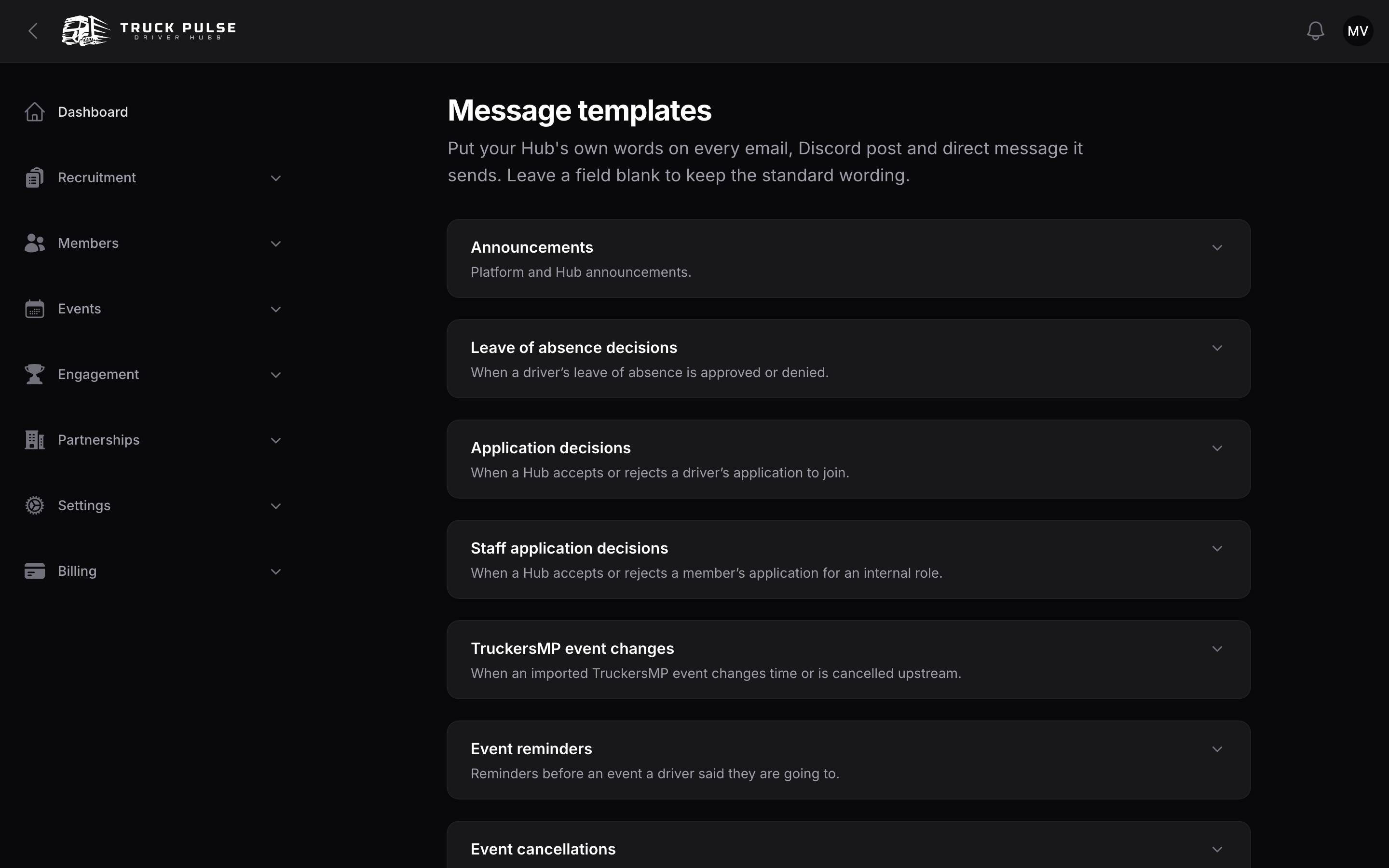
Every email, Discord embed and DM your Hub sends can carry your own wording. Go to Settings → Message templates (needs the update-settings permission):
- Each message type has its own collapsed section — expand the one you want, e.g. Application decisions.
- Edit the blocks the message supports: Email subject, Email heading and Email body for emails and DMs; Discord embed title and Discord embed message for channel posts. Leave a field blank to keep the standard wording.
- Drop in the
{{ variables }}listed under each field — for a leave decision, for example,{{ driver }},{{ start }},{{ end }}and{{ outcome }}. The live Preview below the fields renders your draft with sample data, exactly as recipients will see it. - Save changes. Saving checks every edited block first — an unknown variable or an embed that would blow past Discord's length limits is refused with a message naming the template, rather than failing quietly at delivery time.
Under each section you'll also find:
- Reset to default — remove your customisations for that message.
- Send test email / Send test DM — delivers the current draft to yourself, unsaved edits included.
- Post test embed — posts the draft to a Discord channel you pick (your Hub must be connected to Discord).
Notification settings
Go to Settings → Notifications in the Hub panel:
| Setting | Default | What it does |
|---|---|---|
| Email sender name | Blank (your Hub's name) | The name recipients see in their inbox, shown as "Name via Truck Pulse" |
| Email me when an integration keeps failing | Off | Emails your Hub owner when Trucky, TruckersHub or CCSupervisor has been failing for a while |
Integration failure alerts
Every integration page already shows its own status whether or not this is switched on — see Trucky, TruckersHub and CCSupervisor. The setting is for hearing about a problem without having to look.
It is off by default, and deliberately quiet when on:
- Nothing is sent for a one-off hiccup. The alert waits until an integration has failed several times in a row.
- One outage sends one email, however many deliveries or syncs it affected.
- The alert clears itself when the connection recovers, and a later, separate outage can alert again.
Two integrations are not covered by this setting because they always alert: Discord, where paused delivery silently holds every announcement, and custom domains, where a failure can take your public site off HTTPS. Those are too consequential to be opt-in.
Discord channel routing
Which Hub events post to which Discord channels — event announcements, leave requests, rank promotions and the rest — is set up on the Discord connection page, not here. See /integrations/discord.
Related guides
- /integrations/discord — connect the bot, route events to channels, enable DMs
- /admin/loas — one of the flows whose messages you can reword
- /admin/applications — another (application decisions)