
Partnerships
Keep track of the VTCs and communities you work with, and trade convoy invitations with other Hubs and off-platform VTCs.
What the Partnerships tools cover
Partnerships in Truck Pulse are two things that work together:
- Partners — your address book of the VTCs, communities, media and sponsors you work with: who they are, how the relationship is going, and who to talk to.
- Event invitations — the convoy diplomacy: inviting another VTC to your event, receiving their invitations, and a public form where off-platform VTCs can invite your Hub.
Both live in the Hub panel's Partnerships group. Viewing partners needs the partners.view
permission; adding and editing them needs partners.manage.
Add a partner
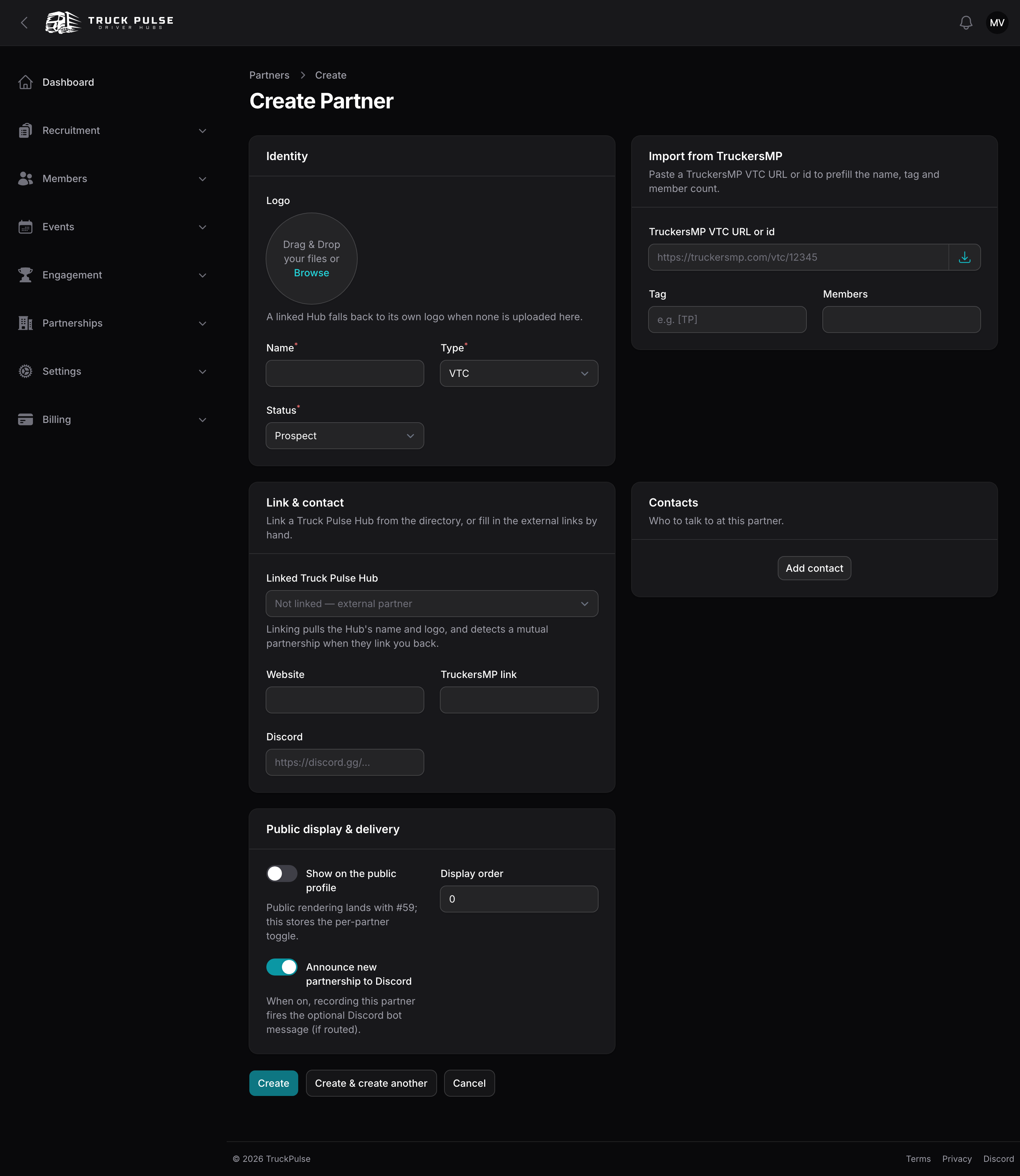
- Go to Partners and create one.
- Fill in the Identity: a Logo, the Name, the Type (VTC, Community, Media or Sponsor) and the Status (Prospect, Active, Paused, Ended).
- Save yourself the typing with Import from TruckersMP: paste the partner's TruckersMP VTC URL or id and press Fetch — the name, tag and member count are prefilled.
- In Link & contact, either pick a Linked Truck Pulse Hub from the directory, or fill in the Website, TruckersMP link and Discord by hand for an external partner. Linking a Hub pulls its name and logo automatically — and when they link you back, the partnership is detected as mutual.
- Add the people in Contacts: name, role, Discord, email.
- In Public display & delivery, choose whether to Show on the public profile (with a Display order), and whether to Announce new partnership to Discord.
On a partner's page you can also keep a running history with Add note, and use Set reminder to get nudged when a partnership deserves a check-in ("review this partnership in 3 months") — the reminder arrives as a normal notification.
Invite another VTC to your convoy
Invitations travel over the event's TruckersMP page, so both sides talk about the same convoy. Only events carrying a TruckersMP link can be sent — import the event first (see /admin/events).
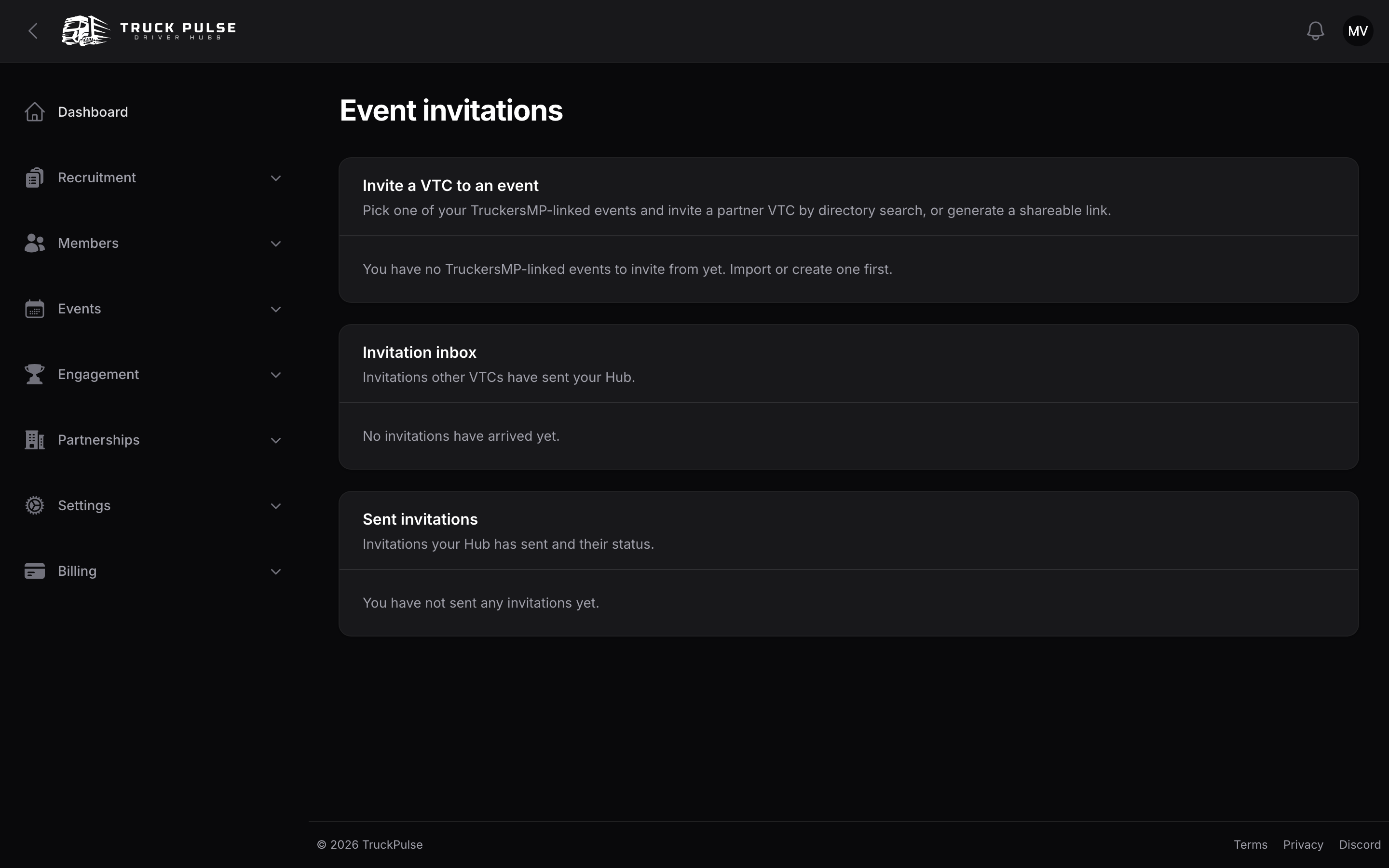
- Go to Event invitations.
- Pick one of your TruckersMP-linked events, search for the receiving Hub by name or slug, and send the invitation. The other Hub is notified and the invitation shows in your sent list with its status.
- Inviting a VTC that isn't on Truck Pulse? Create an invite link for the event instead, and share the token with them directly.
Invitations your Hub receives appear on the same page: accepting adds the event straight onto your schedule — or, if you had imported and then deleted that same TruckersMP event, brings it back with its RSVPs; declining lets you say why. Both outcomes notify the sender.
The public invite form
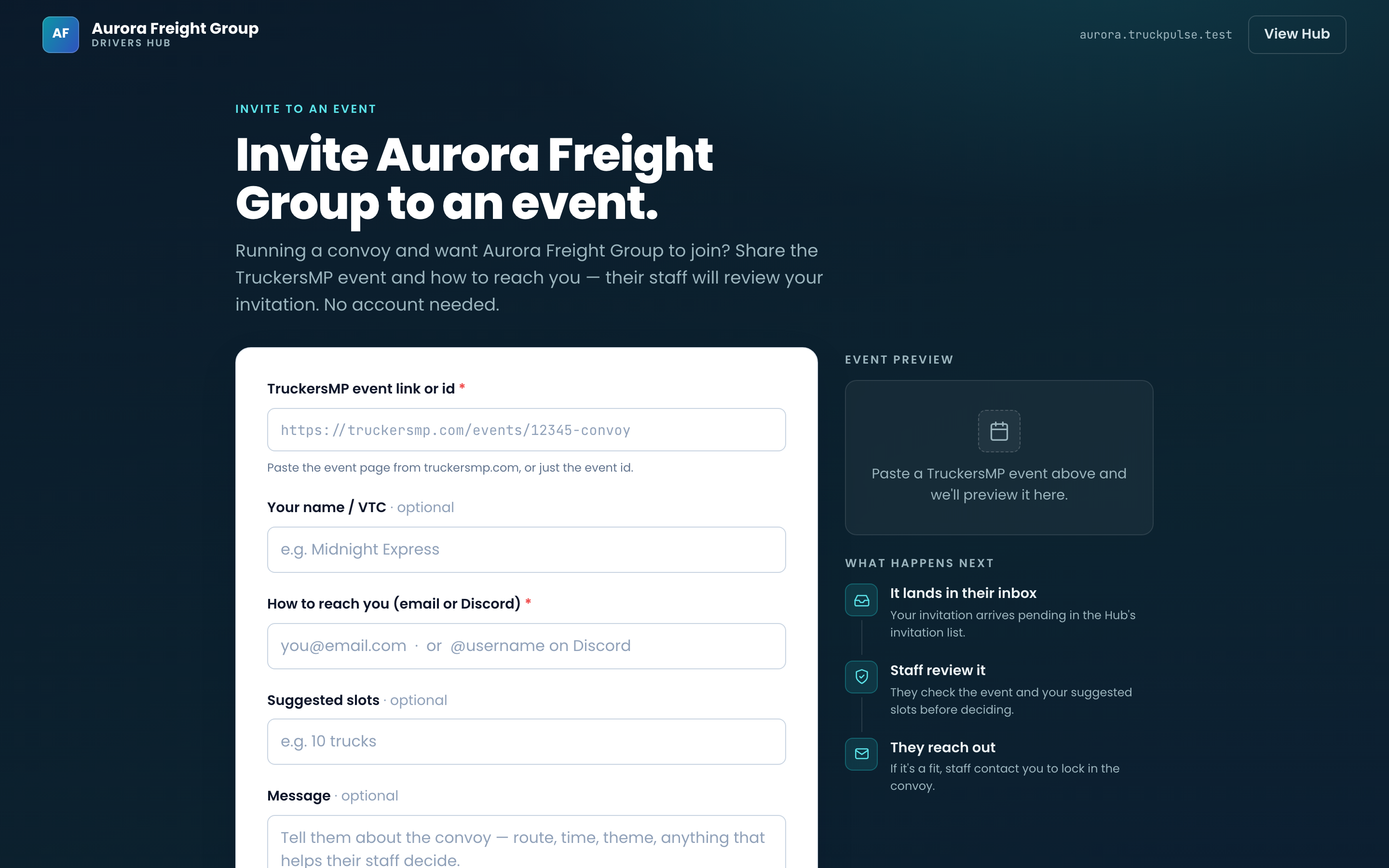
Your Hub can accept convoy invitations from anyone — no Truck Pulse account needed. Once you opt in, a
form appears on your public site at https://{your-slug}.truckpulse.app/invite:
- The visitor pastes a TruckersMP event link — a live preview confirms which convoy they mean.
- They leave a contact email (plus an optional name, slot suggestion and message) and send it.
- The invitation lands as pending in your Event invitations inbox for staff review, like any other.
The form is off by default. Turn it on with Allow external event invitations in /admin/events#event-settings — the same page holds the Blocked invitation senders list, which quietly drops invitations from any Hub slug or email address you name. Submissions are rate-limited, so the form can't be flooded.
Related guides
- /admin/events — importing the TruckersMP event an invitation references
- /admin/slot-booking — give an invited VTC a slot to book
- /integrations/truckersmp — linking your Hub's TruckersMP VTC