
Roles & permissions
What the default roles do, how to create your own, and how to grant roles to members.
How roles work
Roles decide what staff and drivers can see and do in your Hub. Every role is a set of permissions, and a member may hold several roles — their permissions are the union of all of them.
Roles sit in a hierarchy: the most senior role is at the top of the list. Your own most senior role decides your reach — you can only manage roles, and members, ranked below it.
You'll find roles under Members → Roles in the Hub panel sidebar.
The default roles
Every Hub starts with five roles, from most to least senior:
| Role | What it's for |
|---|---|
| Owner | You, the Hub creator. Holds every permission, including new ones added to TruckPulse later. It cannot be edited, deleted or granted to anyone else. |
| Management | Your senior staff. Can run the roster, applications, events, leave, points, goals, ranks, settings, notifications, billing, resources and analytics. |
| Event Team | Staff who plan and run events: create, edit and cancel events, manage attendance, event types, slots and invitations, and award points. |
| Driver | Granted automatically when an application is accepted. Holds no permissions: drivers use the driver panel, where the roster, events, points and ranks are already theirs to see. |
| Applicant | Granted automatically while a driver's application is pending, and removed on acceptance. Holds no permissions: applicants see your public events, but nothing in the Hub panel. |
Only members holding at least one permission — your staff — can open the Hub panel. A driver with none is sent to the driver panel instead, so granting any permission to a role, even a view-only one, makes everyone holding it staff.
Apart from Owner, all of these can be renamed, recoloured, reordered and deleted — they're a starting point, not a rulebook.
Create a custom role
- Go to Members → Roles and press Create.
- Under Details, give the role a Name and pick a Color — the colour shows on the roster and roles list.
- Turn on Default role if the role should be automatically granted to new members when they join the Hub.
- Under Permissions, tick what members with this role can do. Permissions are grouped by module — Members, Roles, Forms, Applications, Events, Leave of Absence, Points, Goals, Competitions, Ranks, Settings, Notifications, Billing, Partners, Resources, Reports and Analytics. Each group can be expanded and has a "select all" toggle; every permission shows a short description of what it grants.
- Save. New roles are placed at the bottom of the hierarchy; the Hub owner can drag roles into a new order on the roles list.
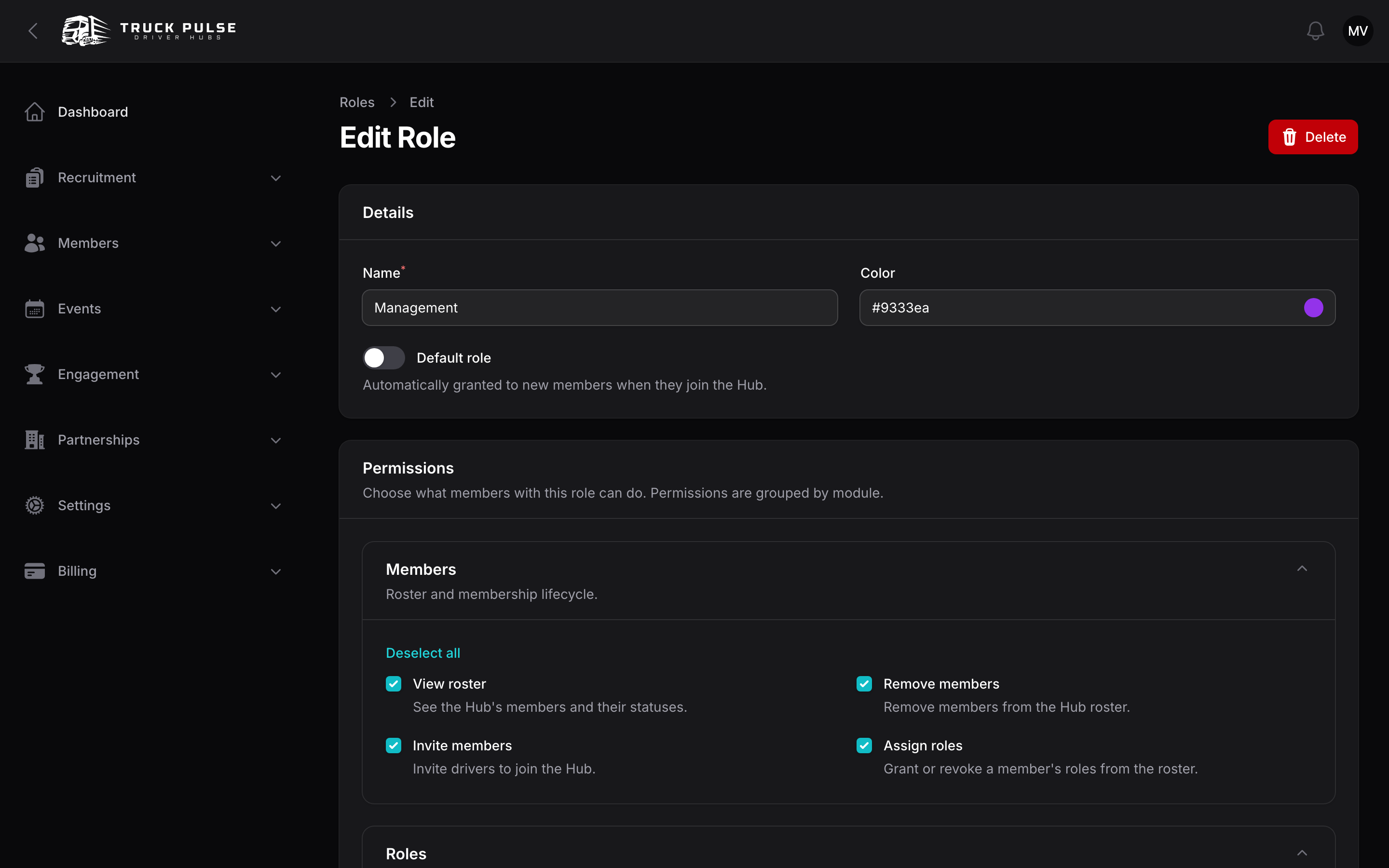
Most modules follow the same pattern: a view permission to see the area and a manage (or more
specific create / edit / decide) permission to change it. When in doubt, start with view-only
and add more later.
Three permissions in the Members group are worth calling out, because they behave differently from each other:
| Permission | What it grants |
|---|---|
| Edit member details | Correct a member's join date and tracker, and write staff-only notes about them, from the member page. Everything it touches belongs to your Hub alone. |
| Manage linked accounts | Set or clear a member's Steam, Discord and TruckersMP identifiers. This one changes the driver's account, which every other Hub they drive for sees — so only your Owner role holds it to begin with. Grant it deliberately, and expect to give a reason each time it's used. |
| Rename members | Change a member's display name — for example to fix an offensive or impersonating name. Like linked accounts, the display name belongs to the driver's account, so the new name shows in every Hub they drive for, and staff in any of those Hubs can change it. Only your Owner role holds it to begin with, and each rename asks for a reason. |
Also note that a member's page only shows what the viewer has permission for. Someone with "View roster" but not "View points" opens the page and sees no points figures and no Points tab.
Roles are also how you set who can see the roster at all — see Roster settings.
Edit or delete a role
- To edit, open the role from Members → Roles. The page has two tabs: Details (name, colour and permissions) and Members (everyone who holds the role — see Who holds a role below). You can only edit roles ranked below your own, and the Owner role can't be edited by anyone.
- To delete, press Delete on the role. If the role still has members, you'll be asked to choose a role under Reassign members to — members keep their access through the role you reassign them to. Deleting a role with no members just asks you to confirm.
Who holds a role
The Members count on the roles list tells you how many people hold each role. To see who they are, open the role and switch to its Members tab. It lists every active member holding the role — name, email and join date — and each row links through to that member's page.
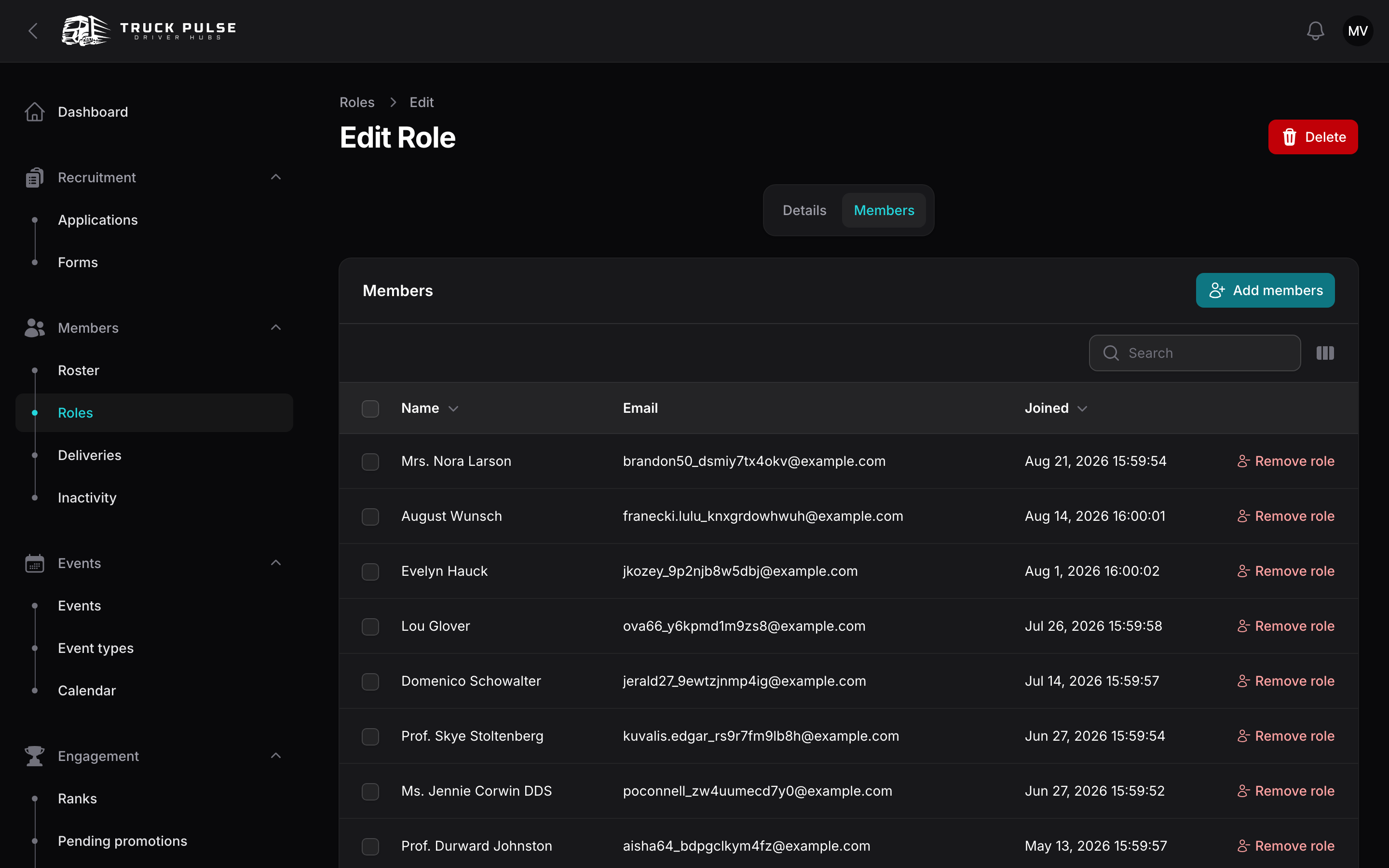
This is also the quickest way to staff a role up or down:
- Add members (top right) opens a searchable list and grants the role to everyone you tick, in one go. Only active members you outrank, who don't already hold the role, are offered.
- Remove role on a row takes the role off that one member. They keep every other role they hold and stay on the roster.
- To take a role off several people at once, tick their rows and use Remove role in the bulk actions menu. Anyone you don't outrank is left alone, and you'll be told how many were skipped.
Both need the Assign roles permission — the same one the roster's "Manage roles" modal uses — and the same guard rails apply, so a role you can't grant shows no add or remove buttons at all. Members who left or were removed don't appear here, even if they still hold the role.
Grant roles to a member
You can also work the other way round, from the roster or the member's page:
- Go to Members → Roster.
- Open the ⋮ menu at the end of the member's row and press Manage roles, or open their page and press it there.
- Tick or untick roles in the Roles list and save. You'll see the notification Roles updated.
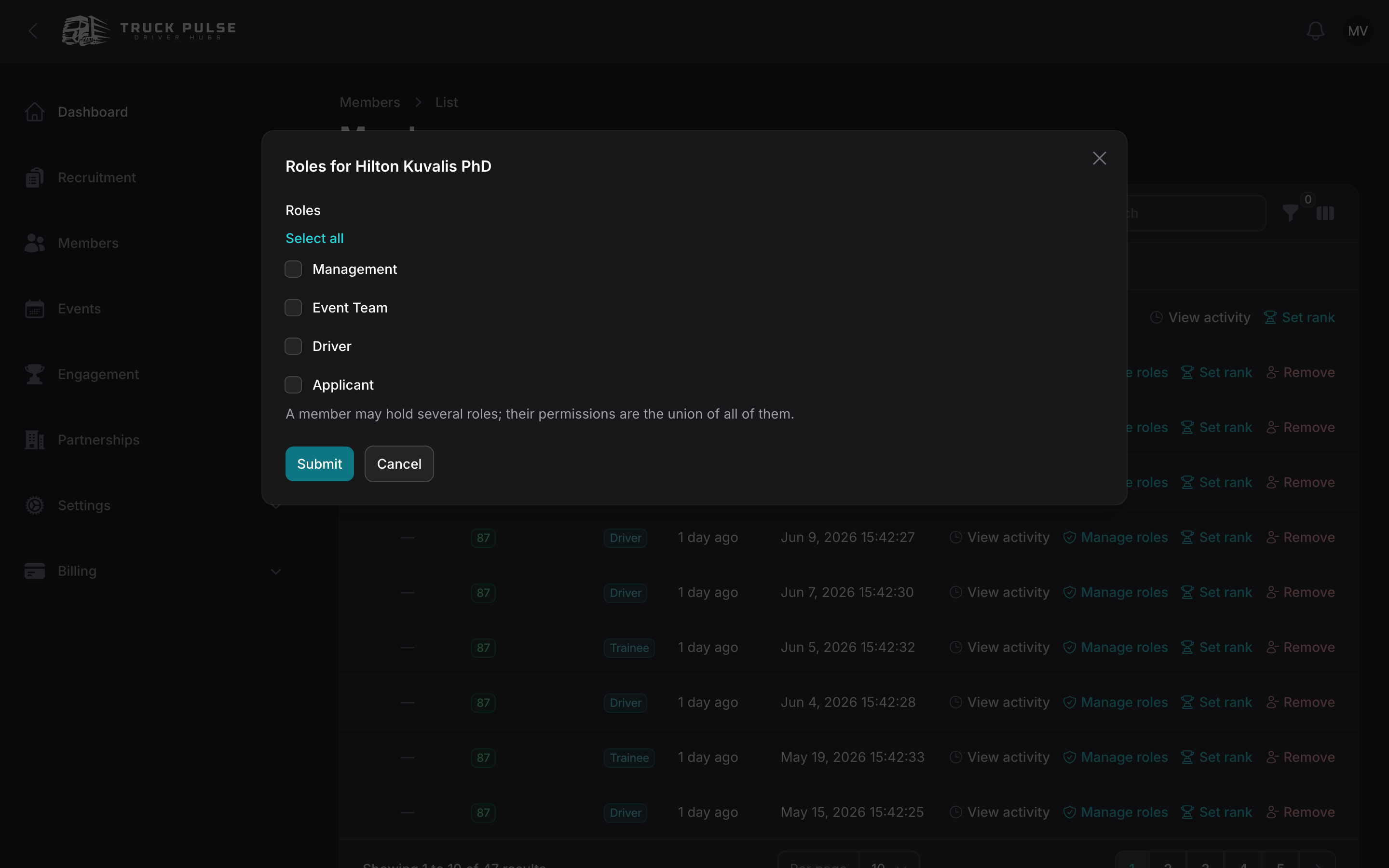
A few guard rails apply:
- You can only grant roles ranked below your own most senior role. Roles above your rank stay as they are — you can't take them away either.
- You can't change your own roles, and nobody can change the Owner's.
- The Owner role is never grantable.
If you use the Discord bot, role changes made here can be mirrored to your Discord server — see Discord.
Roles granted automatically
You never need to hand out these by hand:
- A role marked Default role is granted when a member joins.
- The Applicant role is added while a driver's application is pending.
- The Driver role is added when an application is accepted, and the Applicant role is removed at the same time.
See Driver applications for the application flow itself, and Members & roster for the rest of the roster tools.