
Members & roster
Manage your Hub's members — approve, grant roles, set ranks and remove — and set who can see the roster.
The roster
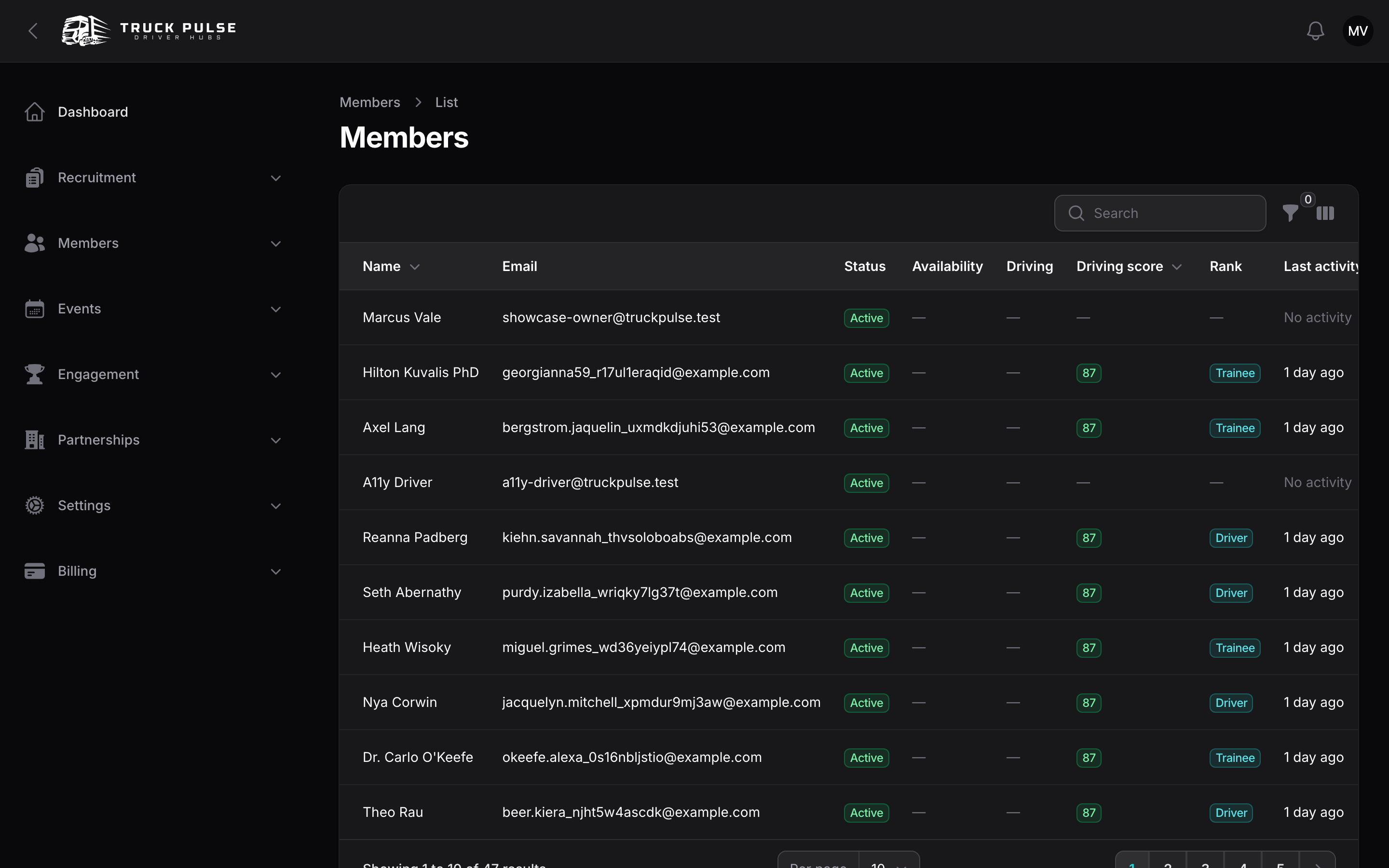
Members → Roster lists everyone who belongs (or belonged) to your Hub. Each row shows:
| Column | What it shows |
|---|---|
| Name and Email | The member's identity. |
| Status | Active, Pending (application accepted but not yet on board), Left or Removed. |
| Availability | An On LOA badge while the member is on approved leave — see Leave of absence. |
| Driving | A Driving now badge while a live Trucky delivery is streaming. |
| Driving score | The member's rolling driving score from Trucky. |
| Rank | Their current rank; a lock marks a rank set by hand — see Ranks. |
| Last activity | When they last earned points. |
| Joined | When they joined the Hub. |
Use the Status filter to narrow the list, and the search box to find someone by name or email.
The member page
Click a row to open that member's page — everything your Hub knows about one driver, in one place.
The Overview tab summarises them:
| Section | What it shows |
|---|---|
| Identity | Their name, display name, timezone, email and when they were last seen. |
| Linked accounts | Their Steam, Discord and TruckersMP accounts — what deliveries and Discord roles are matched on. |
| Membership | Status, rank, the roles they hold, their tracker, and their join and departure dates. |
| Standing | Driving score with the behaviour behind it, whether they're driving or on leave now, their last activity, distance, deliveries, points and how far they are from their next rank. |
| Progression | Their progress on your activity goals and their competition standings. |
| Staff notes | Your private thread about this member (see below). |
The rest of the tabs are their records in your Hub: Deliveries, Points, Events (what they said they'd attend and what they turned up to), Leave, Rank history, Reports filed about them, Applications, and Activity — the audit trail of joins, removals, staff edits and recorded warnings. Every row links through to the full record.
You only see a tab if you have permission for what it holds: the Points tab needs "View points", the Leave tab needs "View LOAs", and so on. If your Hub shows the roster to all members rather than staff only, drivers can open each other's pages — they see the name, rank, status and driving score, and nothing else: no email, no linked accounts, no notes, no records.
Wherever a member's name appears elsewhere in your Hub it links straight here, so you can go from a delivery, a points entry, a leave request or a promotion to the person behind it in one click. Names that aren't linked are people who aren't on your roster, such as the driver on a delivery that hasn't been matched to a member yet.
Ranks and roles link the same way. A rank on the roster or on a promotion opens that rank, and a role on a rank or a staff opening opens that role. You only see a link where you have permission to open the thing it points at.
How members join
There is no separate invite flow — drivers join your Hub by applying. When a driver sends an application they appear on the roster as Pending; accepting the application (or pressing Approve on their roster row) makes them Active, stamps their join date and grants them your Hub's default roles. See Driver applications.
Approving a member counts against your plan's driver limit — if you've hit it you'll see Driver limit reached with a prompt to upgrade. See Billing & limits.
Manage a member
Every action below is on the member's own page, and the everyday ones are also on the roster row, so you can work from whichever you're on:
- View activity — a per-member activity view: their recent deliveries, events and points. An event you have since deleted still shows up there, so the member's history stays complete.
- Approve — activate a pending member (staff with team-management access).
- Edit details — correct when they joined, and which tracker they run if your Hub lets drivers choose. Needs "Edit member details".
- Add note — write a staff-only note about them. Needs "Edit member details".
- Manage roles — grant or take away roles. See Roles & permissions.
- Set rank — set a rank by hand. This locks it: the member is excluded from automatic promotion until you unlock it. See Ranks.
- Unlock rank — let a hand-set rank be recalculated automatically from activity again.
- Change display name — rename the member. Needs "Rename members"; see Change a member's display name.
- Edit Steam / Discord / TruckersMP — repair a member's linked accounts. Needs "Manage linked accounts"; see below.
- Remove — remove the member from the Hub.
A member's email and password are theirs, not yours — they change those on their own profile.
Staff notes
The Staff notes section on the member page is a private thread about that member. Only staff who can view your roster can read it: the member never sees it, and neither does any other Hub they drive for. Notes are append-only — the thread grows, nothing is edited away.
Repair a linked account
If a driver's deliveries aren't being credited to them, the usual cause is a wrong or missing Steam account. Edit Steam, Edit Discord and Edit TruckersMP let you set or clear those identifiers by hand, and each one asks for a reason that is recorded in the audit log.
Treat these carefully: unlike everything else on the page, they change the driver's account, which every other Hub they drive for sees too. Changing or clearing their Steam account also clears their TruckersMP verification (it was proven against the old account) and drops the delivery matches keyed on the old ID, so future jobs are credited correctly.
Because of that reach, this is a separate permission — "Manage linked accounts" — that only your Owner role holds to start with. Grant it deliberately.
Change a member's display name
The name the roster, leaderboards, competitions and Discord posts show is the driver's display name. Drivers set it themselves on their profile; if they haven't, their account name is shown.
Staff with the "Rename members" permission can change it from the member's row or page:
- Open the ⋮ menu and press Change display name.
- Enter the new name, or leave it empty to fall back to their account name.
- Give a reason, then confirm.
The display name belongs to the driver's account, not to your Hub. The new name therefore shows in every Hub they drive for, and staff in those Hubs can change it too. Each rename is recorded in your Hub's audit log and on the member's Activity tab, with the old name, the new name, who made the change and the reason. Names are checked by the same content filter as everything else drivers can read, so an offensive name is refused.
The driver can still change their display name again afterwards from their profile. If someone keeps reverting to an unacceptable name, handle it as a conduct issue (for example with a driver report) rather than renaming them over and over.
Remove a member
- On the member's row, press Remove, then confirm with Remove member.
- They lose access to this Hub immediately. Their membership history is kept for the record — their row stays on the roster with the status Removed.
You can't remove yourself, and the Hub owner can't be removed. Members can also leave on their own from the driver panel; they show as Left.
A member who left or was removed can apply again later — their old record is picked back up rather than duplicated.
Keep an eye on inactivity
Members → Inactivity lists each member's last activity and days inactive, marks members excused by approved leave, and lets you filter to Inactive only. Select drivers and press Send nudge to send them your Hub's friendly come-back message — you can edit its wording in Settings → Analytics. The inactivity threshold lives there too; see Analytics.
Roster settings
Settings → Roster controls who can see the roster and whether drivers from other Hubs may join yours.
| Setting | Default | What it does |
|---|---|---|
| Roster visibility | Staff only | Staff only shows the roster to staff with the "View roster" permission; All members opens it to everyone in the Hub. |
| Allow members who already belong to another Hub | On | Turn off if your Hub expects exclusivity — applicants already driving for another Hub will be blocked from joining. |
Your public profile never lists individual members by name — at most it shows a driver count, and only when you've turned that on in Public profile settings.
Related guides
- Driver applications — how drivers get onto the roster.
- Roles & permissions — what each member is allowed to do.
- Driver reports — handling reports about members.