
Convoy slot booking
Set up numbered convoy slots on an event and let other VTCs book them live, with holds and staff review.
What slot booking is
For a big convoy you assign each visiting company a numbered parking slot. Truck Pulse turns that into a live, public booking page: you create the slots on an event, other VTCs pick one and book it — no account needed — and availability updates in real time for everyone watching. Two companies racing for the same slot can never double-book; exactly one wins and the other is asked to pick another.
Slot booking is part of the Elite plan (see /admin/billing). Managing slots and bookings needs the
events.manage_slots permission.
Set up slots on an event
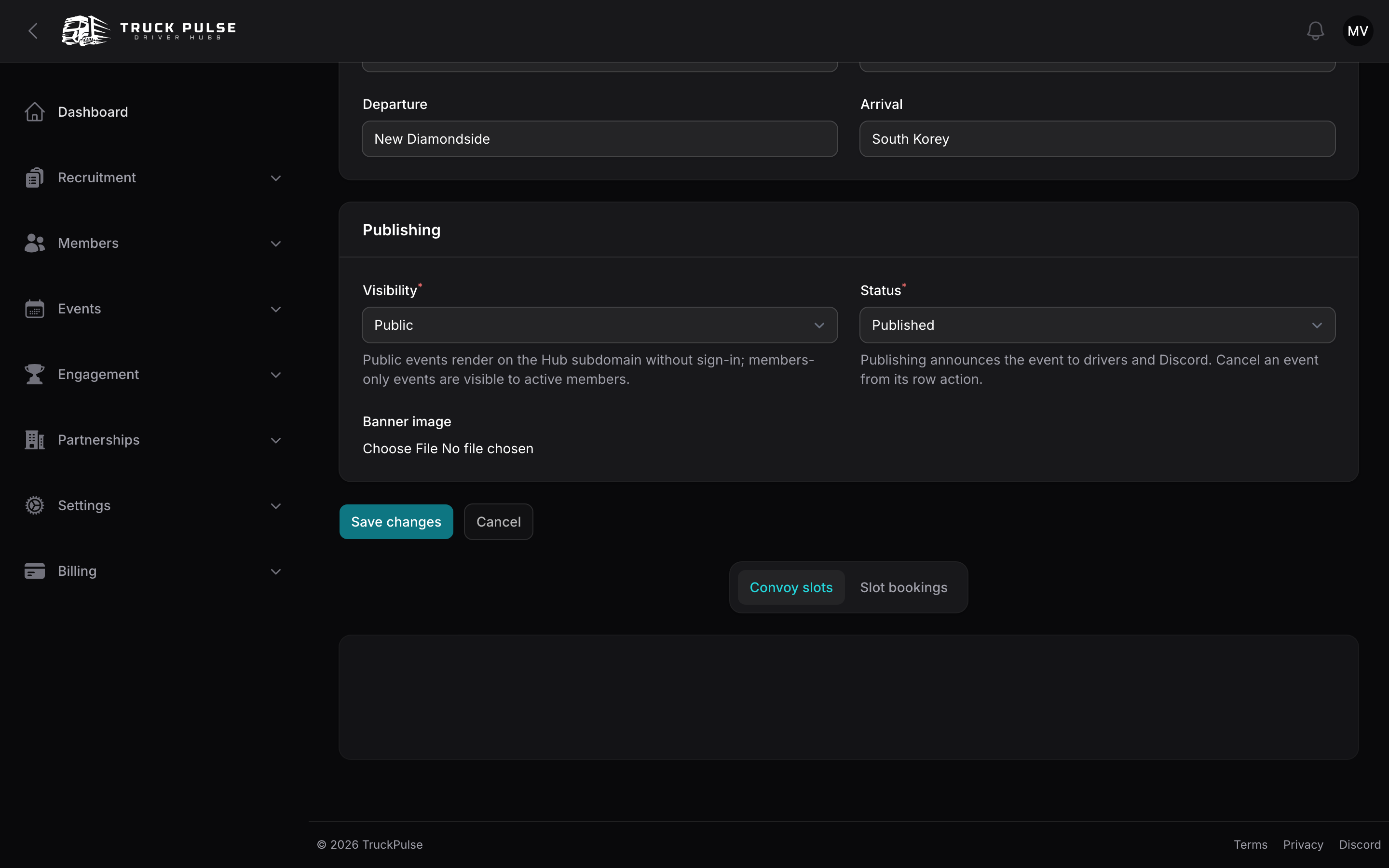
Open the event for editing — the Convoy slots section sits below the event form.
- For a numbered range, use Bulk-create slots: set From number and To number (say 1 to 40),
keep the Label template
Slot :number, and optionally a Zone / group (e.g. "Zone A") and a Capacity each. One click creates the whole range. - For one-offs, use New slot and fill in the Label, Zone / group, Capacity and Status.
- Give each slot a Slot map — a crop of the convoy map showing where it sits — plus a short Map description so people who can't see the image still know where the slot is.
- Drag rows to reorder how slots appear on the public board.
Each slot has row actions to Hold it (temporarily unavailable), Close it (out of the pool, keeps its history) or Reopen it.
Turn booking on
Still in the Convoy slots section, open Booking settings:
| Setting | Default | What it does |
|---|---|---|
| Enable slot booking | Off | Opens the public booking page for this event |
| Booking opens / Booking closes | Blank | An optional window; blank means open while enabled |
| Who can book | Public | Public, Link only, or Invited companies only |
| Approval | Confirm automatically | Or Staff review — bookings wait for your approval |
| Max slots per company | No limit | Cap how many slots one company may hold |
| Slot hold (minutes) | Hub default (5) | How long a slot stays reserved while a form is filled |
| Show live viewer count | Hub default (on) | The "N companies viewing" line on the page |
| Confirmation email message | Blank | Extra text added to the booking confirmation email |
The modal also previews the current availability ("12 of 40 slots booked") and the booking form's fields. The default fields — company name, contact, drivers — are created when you first save, and you can tailor them like any other Hub form afterwards.
The Hub-wide defaults for the hold duration and viewer count live in Settings → Events — see /admin/events#event-settings.
How external VTCs book
The booking page lives at https://{your-slug}.truckpulse.app/events/{event}/book and is linked from the
event's public page. No sign-in is required; a signed-in member's contact details are prefilled.
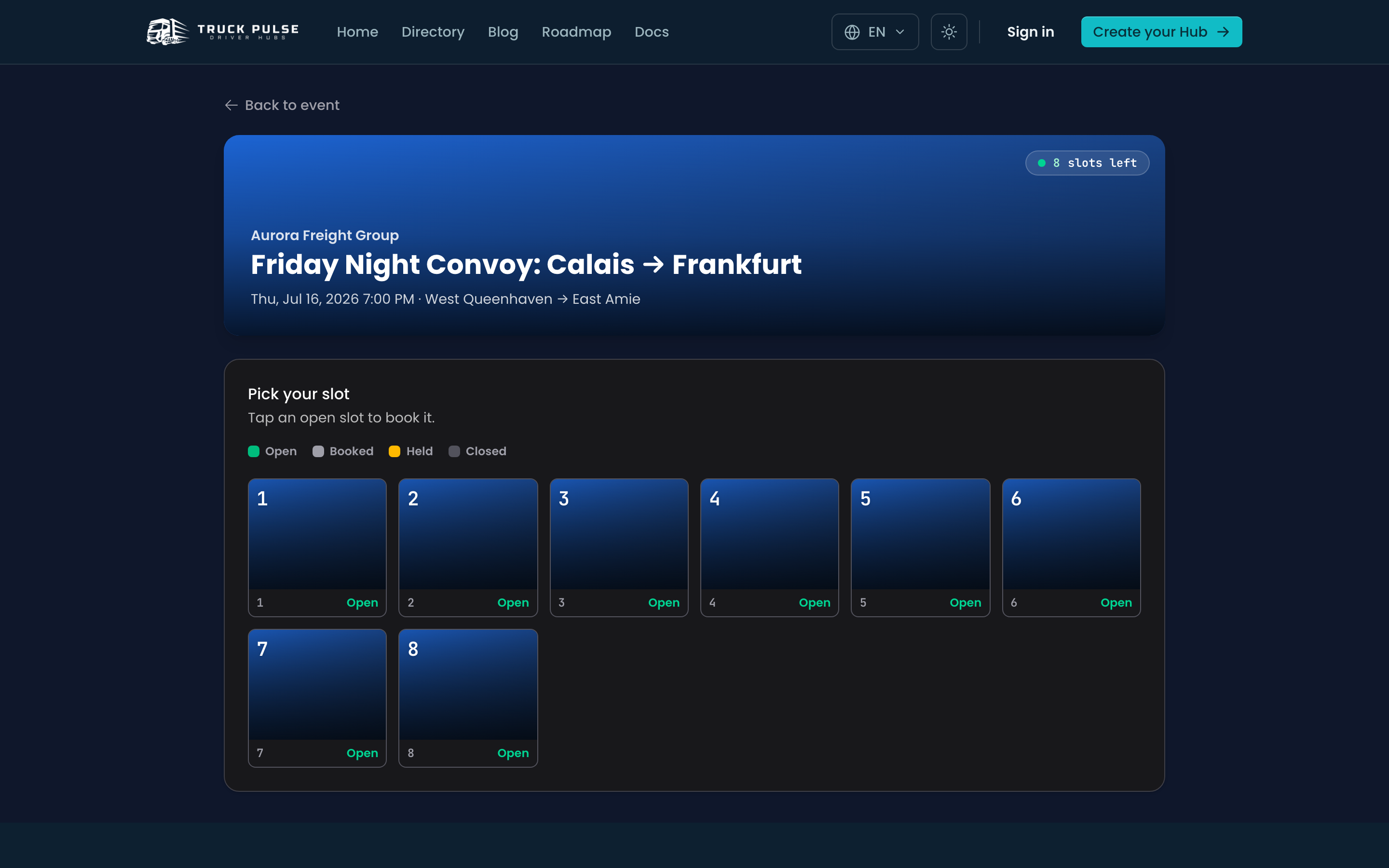
- The visitor sees the slot board — every slot with its map, label and live state (open, held, booked or closed) — and, when turned on, how many companies are viewing right now.
- Tapping an open slot reserves it with a soft hold (5 minutes by default) and opens the booking form. A countdown shows how long the hold lasts; everyone else sees the slot as held the moment it happens.
- They fill in the booking form and send it. If approval is automatic the slot is theirs immediately; in staff-review mode the booking is Pending review until you decide.
- They get a confirmation email with a private manage-link, where they can view or cancel their booking themselves. The link stops working once the event has ended.
If a hold runs out mid-form, nothing is lost — the visitor's answers are kept and they're offered a re-acquire path. If the slot was genuinely snapped up in the meantime, they're shown a friendly "slot just taken" message and can pick another. Holds are a courtesy, not the lock: the final claim is transactional, so a slot can never be sold twice.
Manage bookings
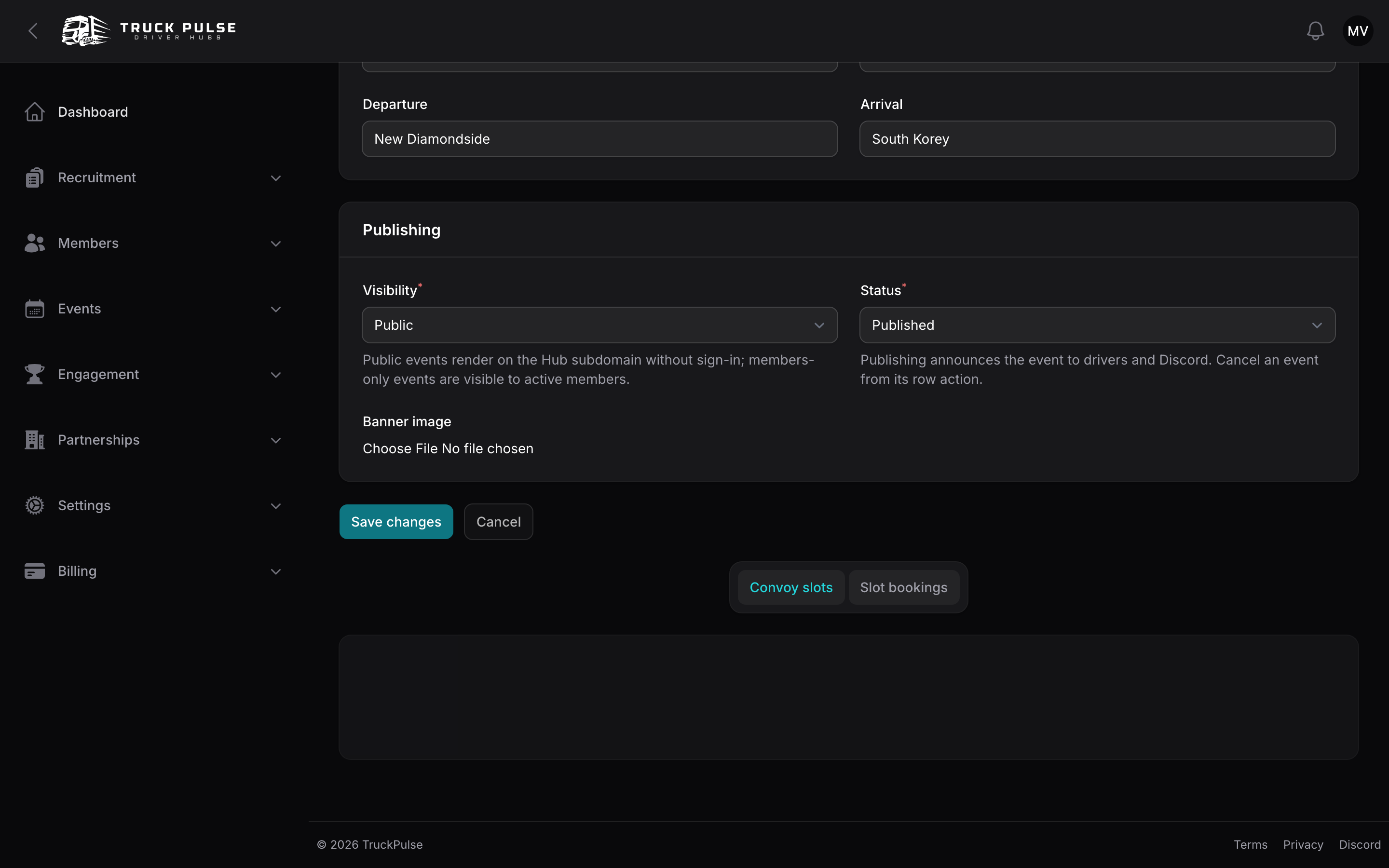
The Slot bookings section on the event edit page lists every booking with its slot, company, contact and status (Pending review, Approved, Denied, Cancelled). Row actions:
- Approve / Deny — for pending bookings in staff-review mode. Denying reopens the slot and notifies the booker.
- Reassign — move a booking to another open slot, e.g. to group partner companies together. The booker is told.
- Cancel — free the slot; the booker is notified.
Slot-booking activity has its own analytics page — see /admin/analytics.
Related guides
- /admin/events — creating the event the slots hang off
- /admin/partnerships — inviting a specific VTC to your convoy
- /admin/billing — which plan includes slot booking