
Events & convoys
Browse your Hub's convoys and community nights, RSVP in the driver panel, and book your slot in a convoy line-up.
Convoys, training runs and community nights are where a VTC comes alive. Here's how to find them and say you're coming.
Browse events in your driver panel
- In your Hub's driver panel, click Events in the sidebar.
- Upcoming events are listed soonest first. Times are shown in the Hub's timezone, with a "Your time" hint when yours differs.
- Click an event to open the full detail — description, Game, Server and Route.
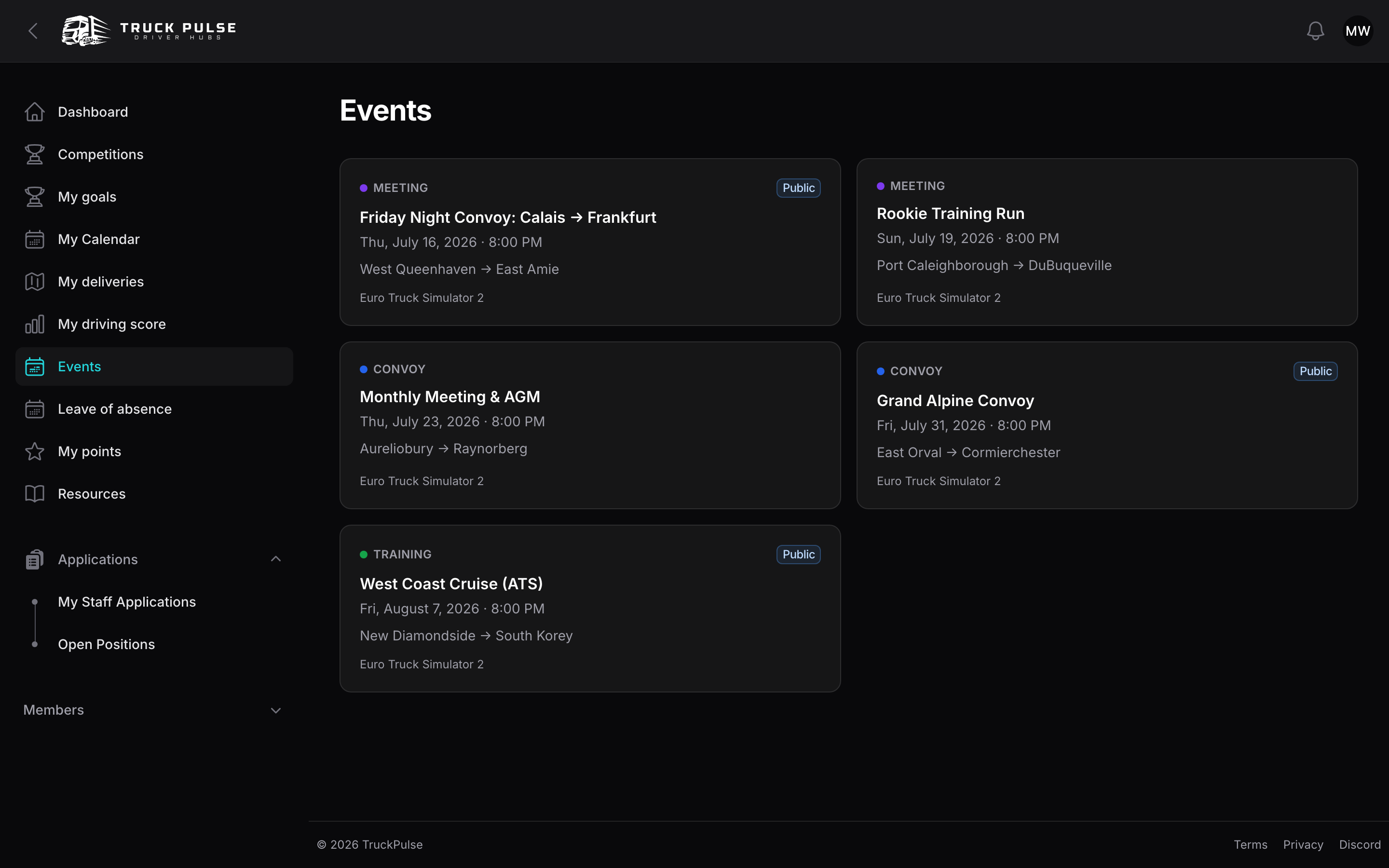
Events marked Public are open for anyone to see; the rest are members-only, and as a member you see both.
RSVP
From your dashboard
The Upcoming events card on your driver dashboard lists your Hub's next five events, soonest first, with times in your own timezone (or the Hub's, if you haven't set one in your profile). Under each one:
- Click Going, Interested or Declined. Your current answer is highlighted, and the going and interested counts update straight away.
- Click Clear to remove your answer.
- Once RSVPs for an event have closed, its buttons are replaced by a note, along with your answer if you gave one.
The card shows how many more events there are. Click All events to see the rest.
From the Events page
On an event's detail page, under Will you attend?:
- Pick Going, Interested or Declined. You can change your mind any time until the Hub's RSVP cutoff.
- Click Clear to remove your response entirely.
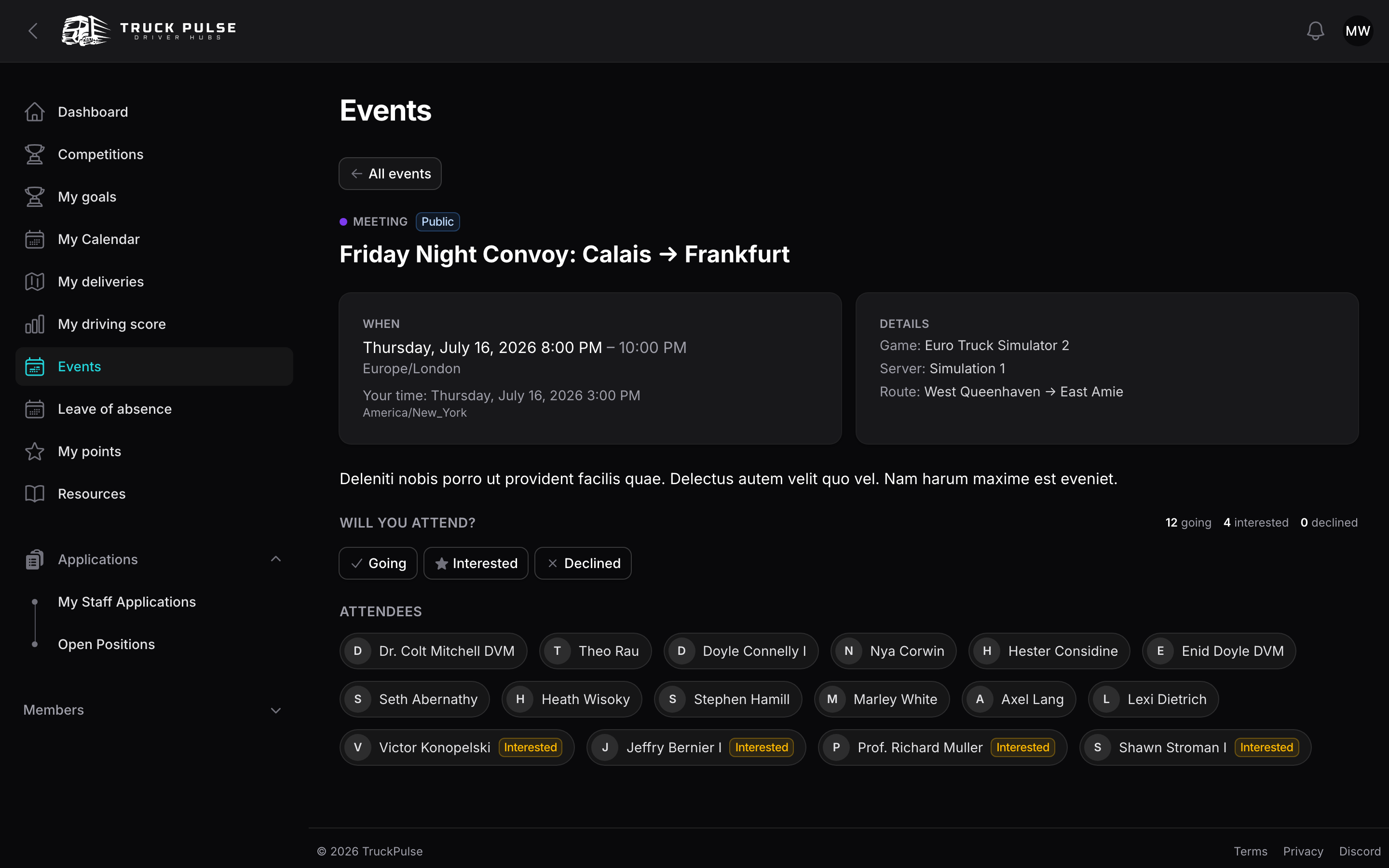
What your response does:
- Going or Interested puts the event on your My Calendar page in the panel.
- Going is who pre-event reminders go to — respond honestly and you'll never miss a departure.
- The attendee list under the RSVPs shows who else is coming (some Hubs keep it staff-only).
Once RSVPs close you'll see "RSVPs for this event have closed" with your recorded response.
Events on the Hub's public site
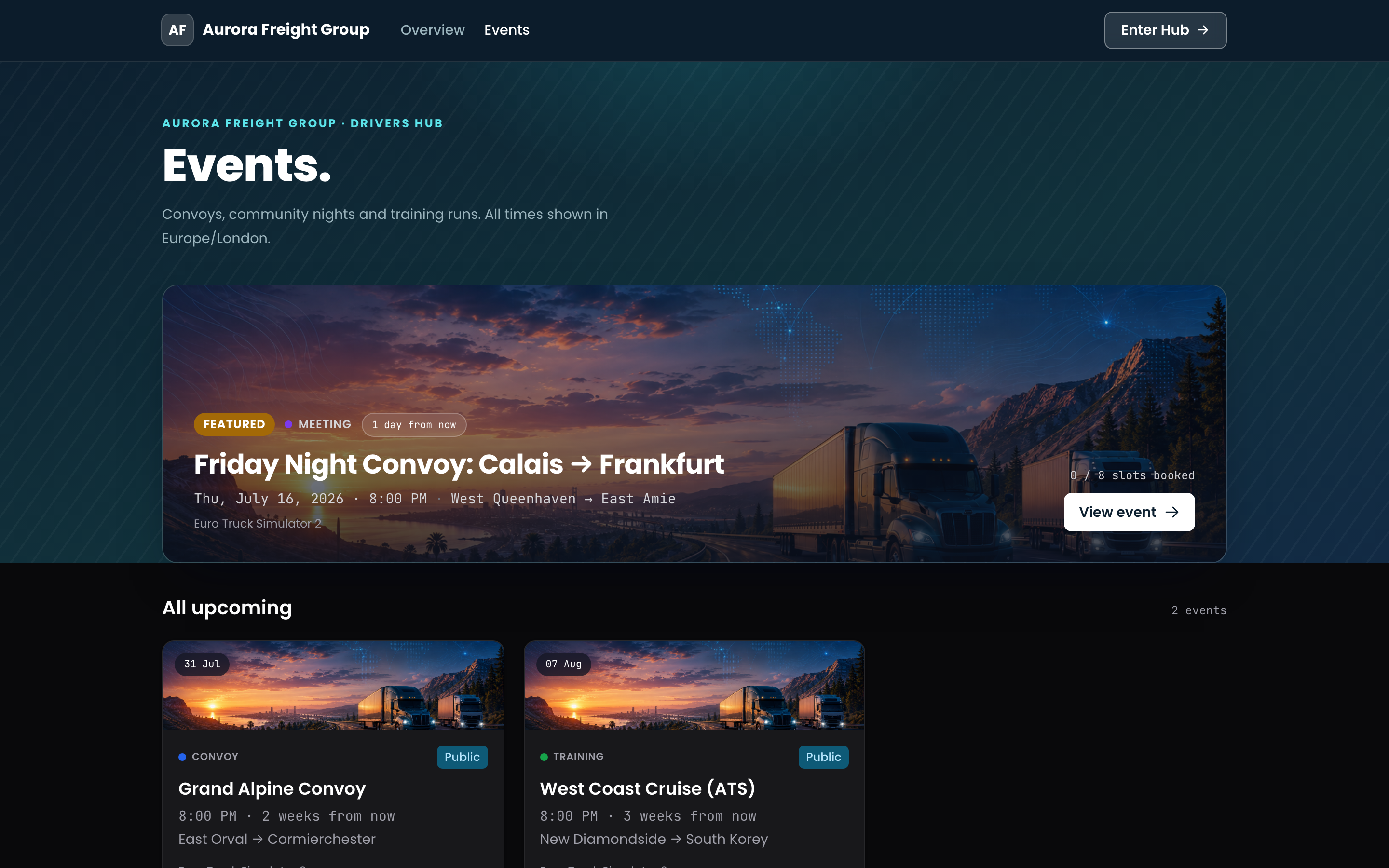
The same upcoming events are listed publicly at {hub}.truckpulse.app/events — handy for sharing
a convoy with friends who aren't members yet. Guests see public events only, and are asked to
sign in before they can RSVP.
Book a convoy slot
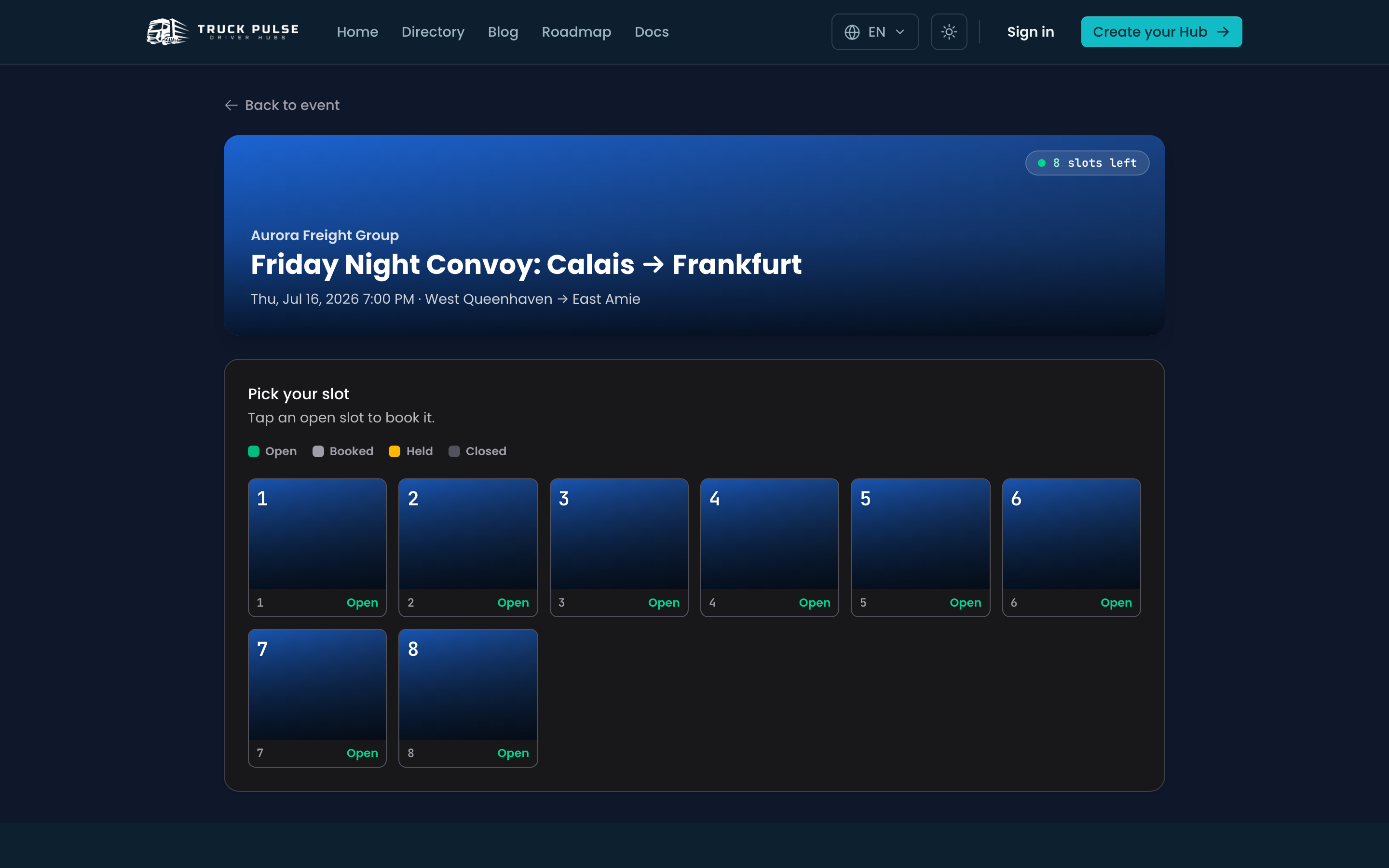
For big convoys, many Hubs publish a slot map — numbered positions in the line-up, often set aside for partner VTCs and guests. If an event has slots, its public page shows a booked-slots count (for example "12 of 30 slots booked").
- On the event's public page, click Book a slot.
- Tap an open (green) slot. It is held for you for a few minutes while you finish — you'll see a Held for you countdown.
- Fill in any details the organisers ask for. Signed in? Your contact details are prefilled.
- Click Confirm booking.
You're emailed a link to view or cancel your booking — no account needed to use it. Some Hubs review bookings first, in which case yours shows as pending until staff confirm it.
Slot booking is how a whole VTC claims its place in a partner convoy too; if you just want to drive along with your own Hub, an RSVP is usually all you need.
Next up: make your deliveries count with a delivery tracker.