
Getting started
Sign in with Steam or Discord, link your TruckersMP account, find a Drivers Hub and apply to drive.
Welcome to Truck Pulse — the home base for your virtual trucking life. This page takes you from "no account" to "driver in a Hub" in a few minutes.
Sign in with Steam or Discord
Steam is how most drivers sign in — it is also the identity your deliveries and TruckersMP verification hang off later.
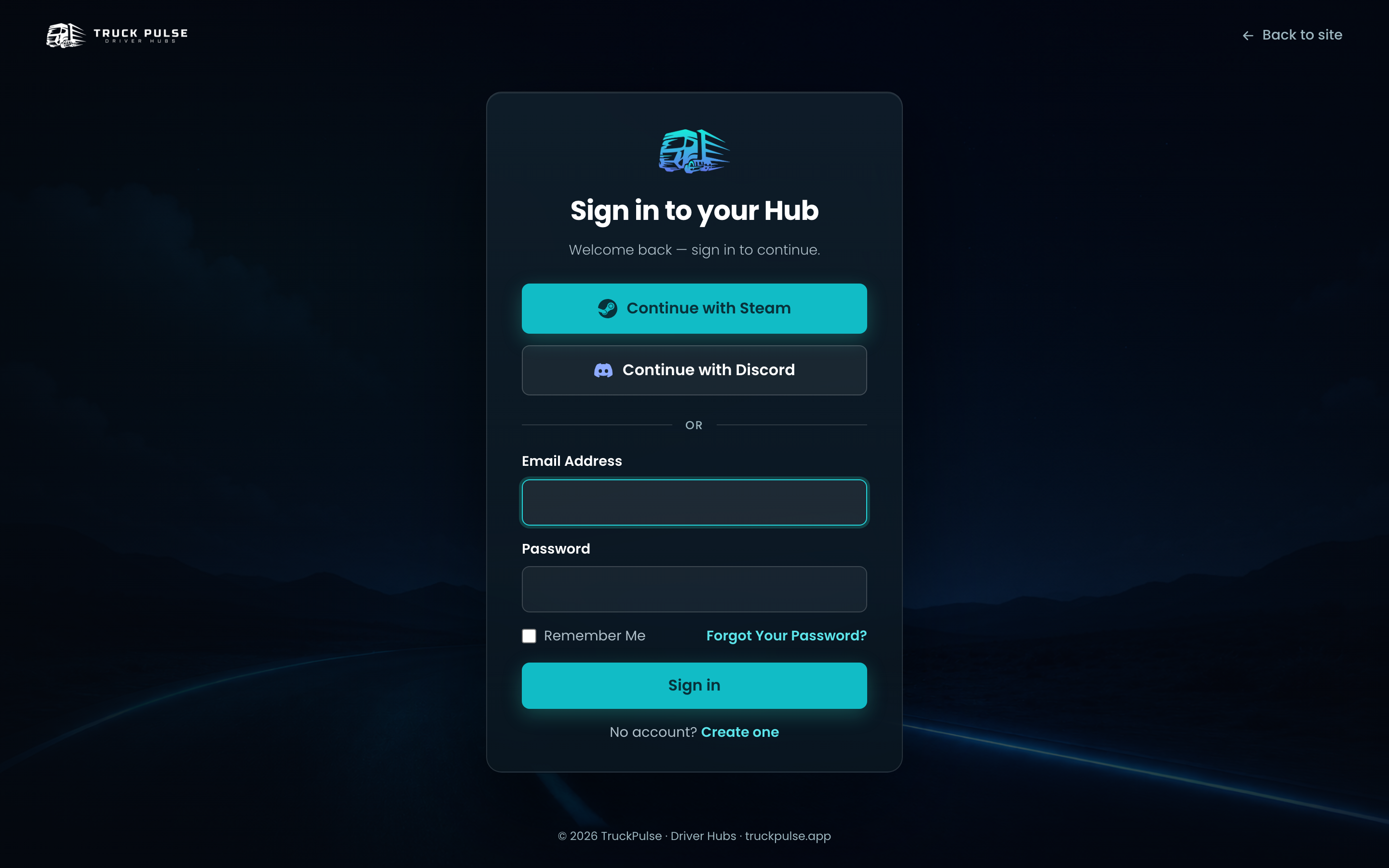
- Go to truckpulse.app and choose Sign in.
- Click Continue with Steam, or Continue with Discord if you prefer. You can also sign in the classic way with your email address and password.
- Approve the sign-in on Steam or Discord. You are sent straight back to Truck Pulse.
Steam doesn't share an email address, so the first time you sign in we ask for one:
- On the Add your email screen, enter your address and click Send verification code.
- Type the 6-digit code from your inbox and click Verify & continue.
Your email is a backup way into your account and where convoy and event notifications land. You can click Skip for now and add it later from your profile.
📷 Screenshot coming soon — the add-your-email step after a first Steam sign-in.
Link your TruckersMP account
A verified TruckersMP account earns you a verified badge, and some Hubs require it before you can apply.
- Once you are in a Hub's driver panel, open the avatar menu in the top-right corner and choose My Profile.
- Scroll to Connected accounts and find the TruckersMP card.
- Enter your TruckersMP ID — the number from your TruckersMP profile URL.
- Click Verify. We check the ID against your Steam account, so make sure Steam is connected first.
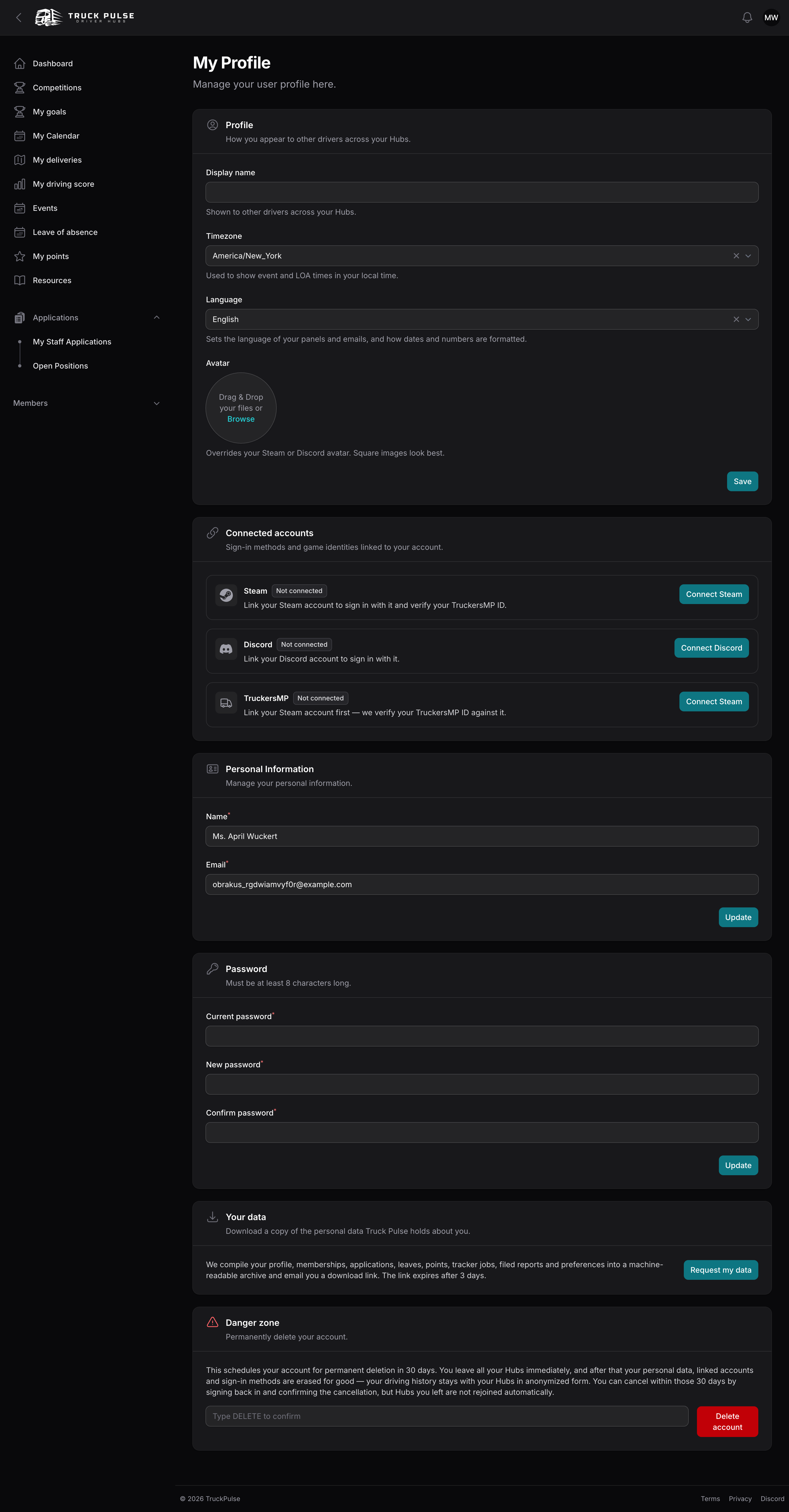
The same section shows your Steam and Discord connections. More detail lives in the TruckersMP guide.
Set your avatar
Your avatar comes from Steam or Discord. To use your own picture instead:
- Open the avatar menu in the top-right corner and choose My Profile.
- In the Profile section, click the Avatar circle (or drag an image onto it) and pick an image. Square images look best.
- Click Save.
To change it later, remove the current picture with the × on the circle, add the new one and click Save. To go back to your Steam or Discord avatar, remove the picture and click Save without adding a new one.
Set your display name
Your display name is what other drivers and staff see on rosters, leaderboards and Discord posts, in every Hub you belong to. Until you set one, the name from your Steam or Discord account at sign-up is used.
- Open the avatar menu in the top-right corner and choose My Profile.
- In the Profile section, fill in Display name.
- Click Save.
Staff of a Hub you belong to can also change your display name, for example if it breaks their rules. They have to give a reason, which is recorded, and you can change it again yourself afterwards.
Find a Drivers Hub
Every VTC on Truck Pulse runs a Drivers Hub, and the public directory lists them all.
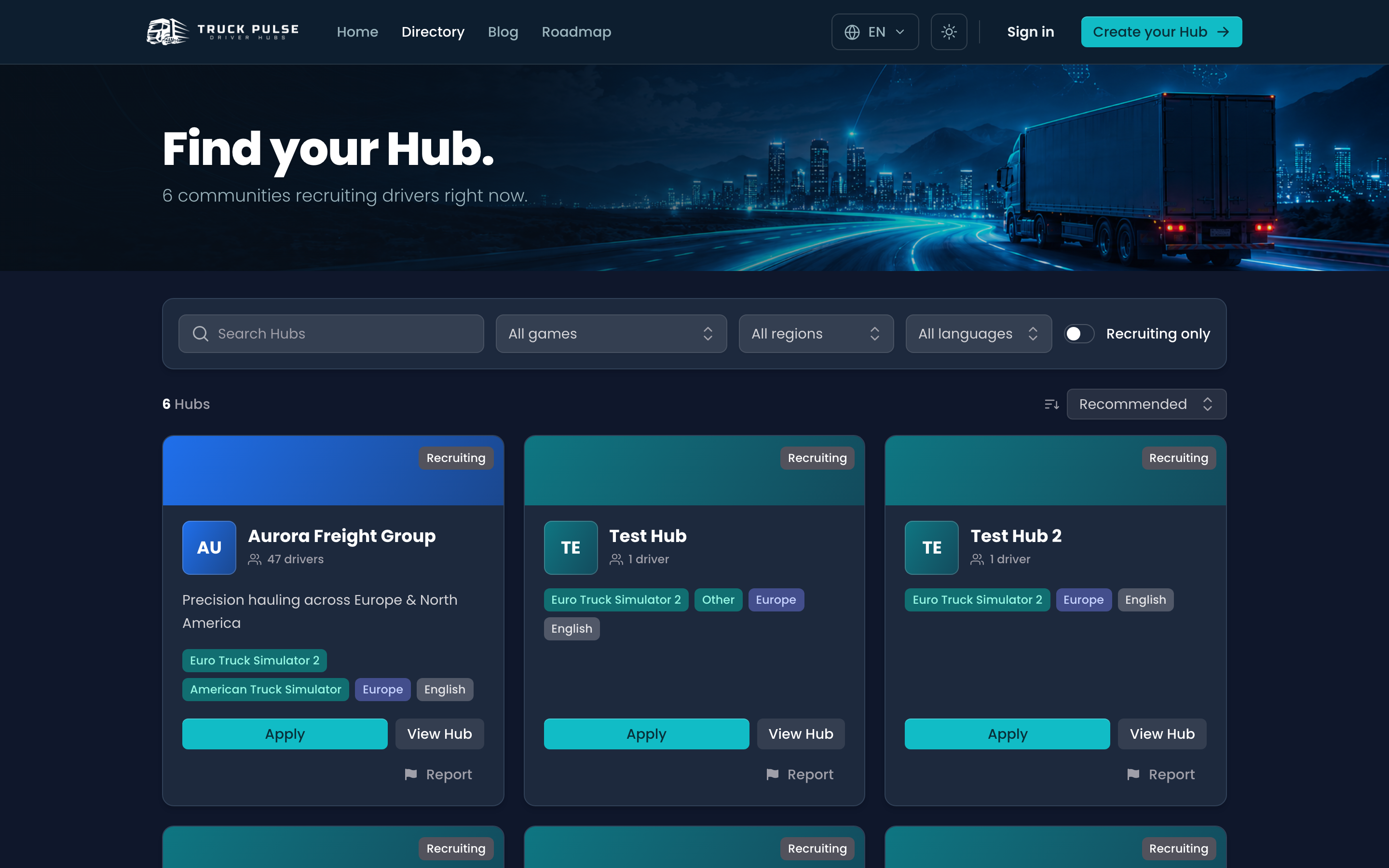
- Go to truckpulse.app/hubs.
- Search by name, or filter by Game, Region and Language. Flip on Recruiting only to hide Hubs that aren't taking new drivers.
- Click View Hub to read a Hub's public page, or Apply to jump straight to its application.
Apply to a VTC
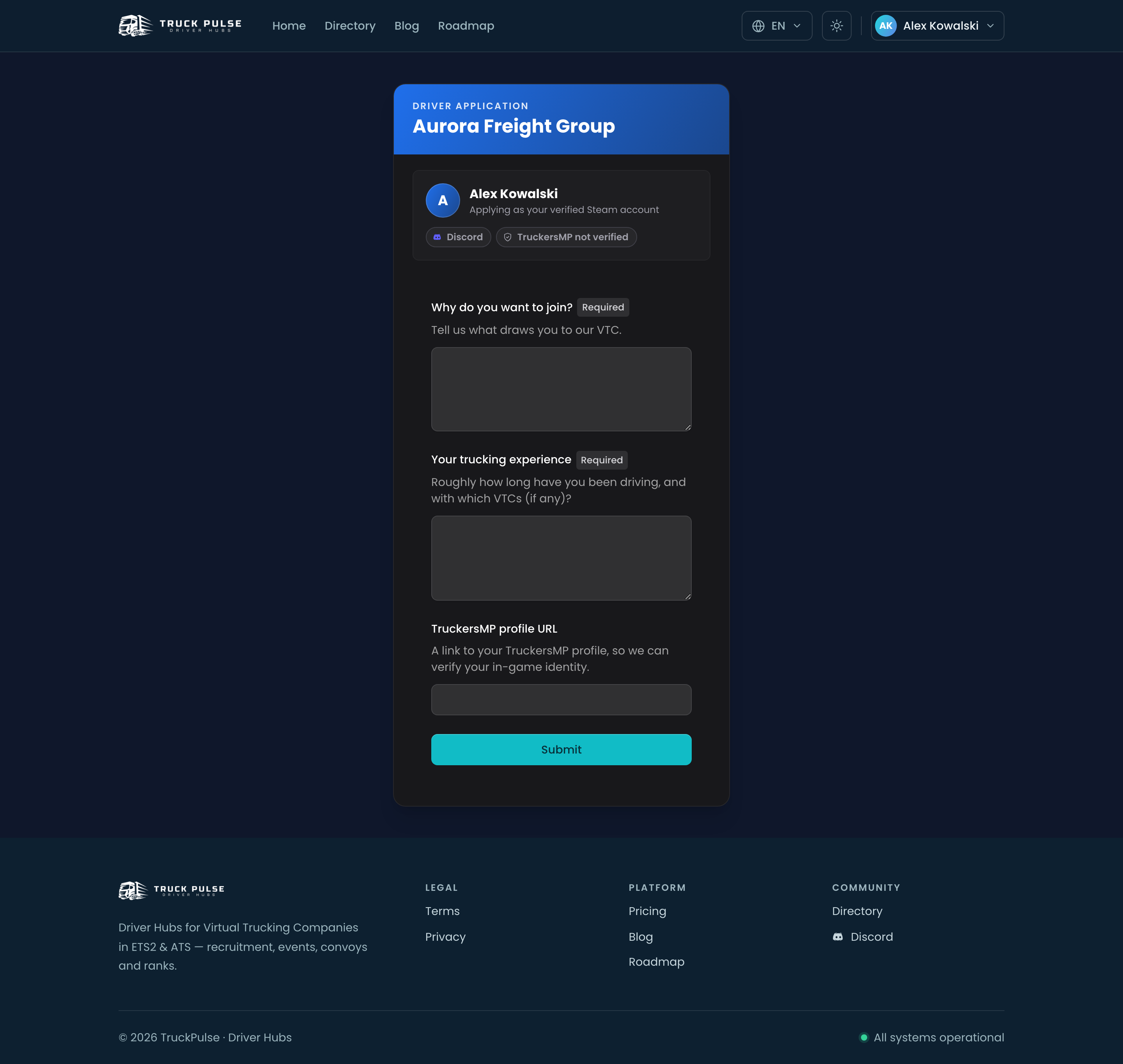
- On the Hub's public site, click Apply to drive (or Apply on its directory card).
- Sign in with Steam if you haven't already — applications are tied to your verified identity.
- Your Steam, Discord and TruckersMP badges are attached automatically; you never re-type them.
- Fill in the Hub's application form and send it.
Some Hubs require a verified TruckersMP account or a linked Discord before you can apply — the page tells you exactly what to link, with a button to do it.
What happens after you apply
You'll see Application received, and the Hub's staff take it from there.
📷 Screenshot coming soon — the "Application received" confirmation with View application status.
- Track it — revisit the same apply page for its status, and click View application status any time.
- Get the decision — you are emailed when staff accept or reject your application.
- Accepted? You're a driver! Sign in and you land in your Hub's driver panel at
{hub}.truckpulse.app/app— your dashboard, events, deliveries and points all live there. From then on, typing your Hub's home address ({hub}.truckpulse.app) while signed in takes you straight to the driver panel too — your dashboard is home. View Hub links (in the directory, or on a partner card) still open the public page as a visitor sees it. - Not this time? Some Hubs set a short waiting period before you can reapply; the apply page shows the date.
You can drive for more than one Hub — the panel's Hub switcher appears once you belong to two.