
Request a leave of absence
Tell your Hub you'll be off the road for a while, so quiet weeks don't count against your activity.
Exams, holidays, a new job, a broken wheel on your desk chair — life happens. A leave of absence (LOA) tells your Hub you'll be away, so nobody wonders where you went and your activity record stays clean.
Request leave
- In your driver panel, click Leave of absence in the sidebar.
- Click Request leave of absence.
- Pick your Start date and End date.
- Choose a Reason from your Hub's list, and add Details if you like.
- Optionally add a Note for management — anything you want staff to know privately.
- Click Submit request.
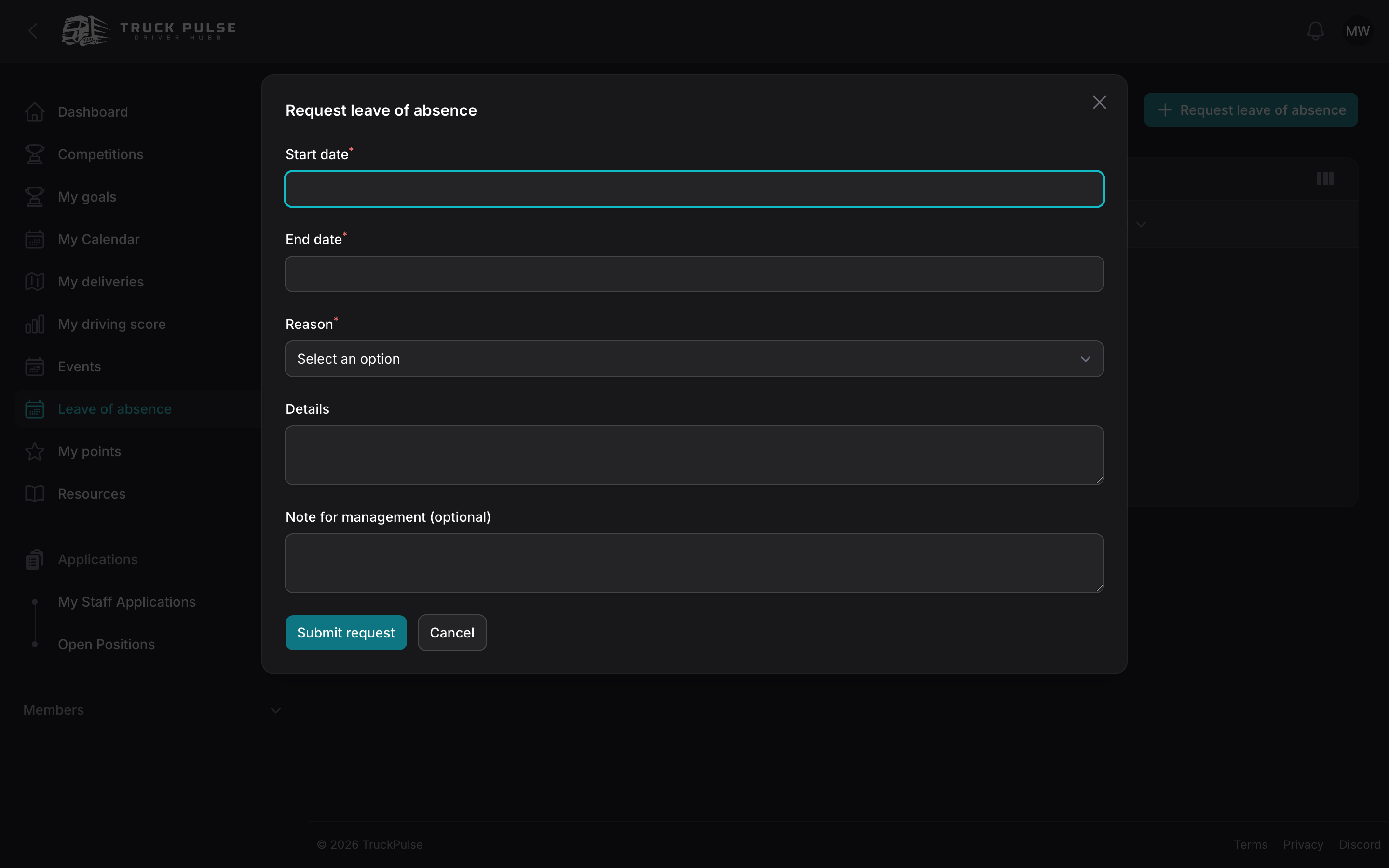
Each Hub sets its own limits — a maximum leave length, how many leaves you can take per year — and two of your leaves can't overlap. If your request bumps into a limit, the form tells you exactly what to change.
What happens next
Your request lands with your staff team for review. Many Hubs auto-approve short leaves, so your request may be approved the moment you send it.
Your Leave of absence page lists every request with its status:
- Pending — waiting for staff review.
- Approved — you're covered for those dates.
- Denied — staff couldn't approve it; talk to them if you're unsure why.
- Cancelled — you withdrew it.
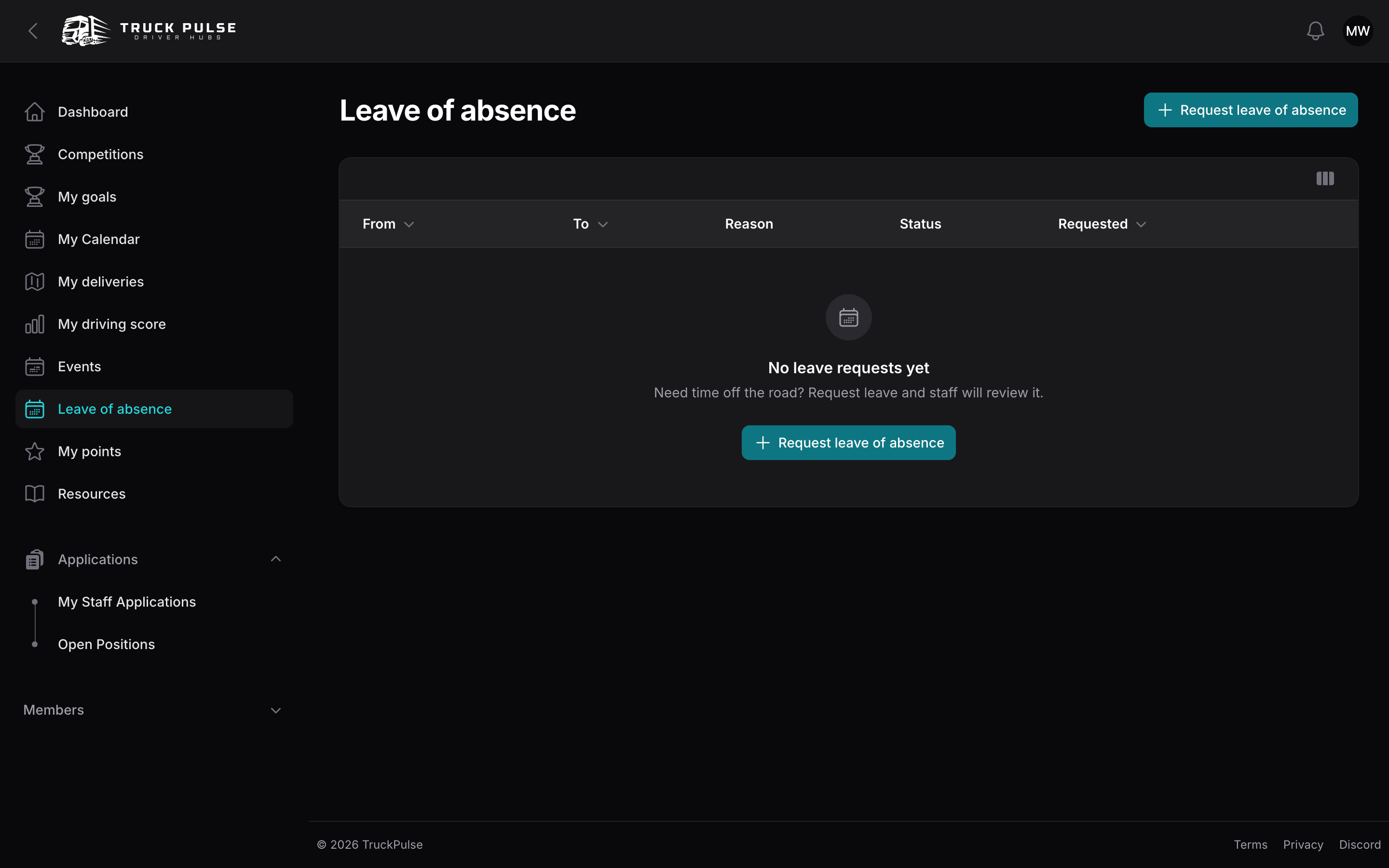
Changed your plans? Click Cancel on a request to withdraw it — you can submit a new one whenever you like. Once a leave is underway it may no longer be cancellable from your side; ask your staff team instead.
While a leave is active, a banner on your dashboard reminds you (and reassures you) that you're officially off the road. It also appears ahead of time for an approved or pending leave that hasn't started yet, and disappears on its own once the leave's last day has passed.
How leave affects activity requirements
This is the whole point: days covered by an approved leave are excused from your Hub's activity checks. If your Hub expects, say, regular deliveries or points-earning activity, the days you were on approved leave are subtracted before anyone evaluates you — an approved absence is never inactivity.
Two small notes:
- Only approved leave excuses you — a pending request doesn't, so send it before you go, with a little notice.
- If you don't see the Request leave of absence button, leave requests aren't included in your Hub's current plan; your existing requests stay visible, and your Hub owner can upgrade to turn requests back on.